[Library] Silverware-table

Silverware Table: interactive markdown tables

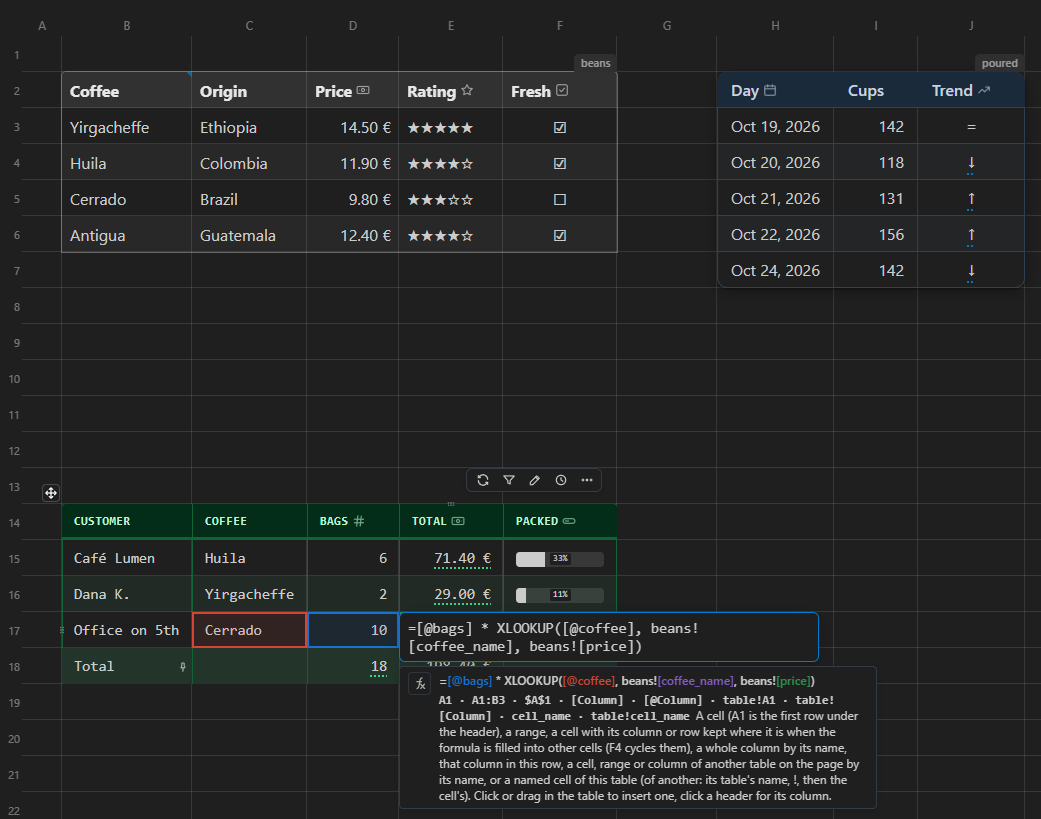
I've been working on a library that makes markdown tables in SilverBullet editable in place. You click a cell and type, sort or filter by a column, and add, move or delete rows and columns without touching the pipes.

I know this is yet another table plugin, but nothing I tried did quite what I wanted, so I decided to build my own.

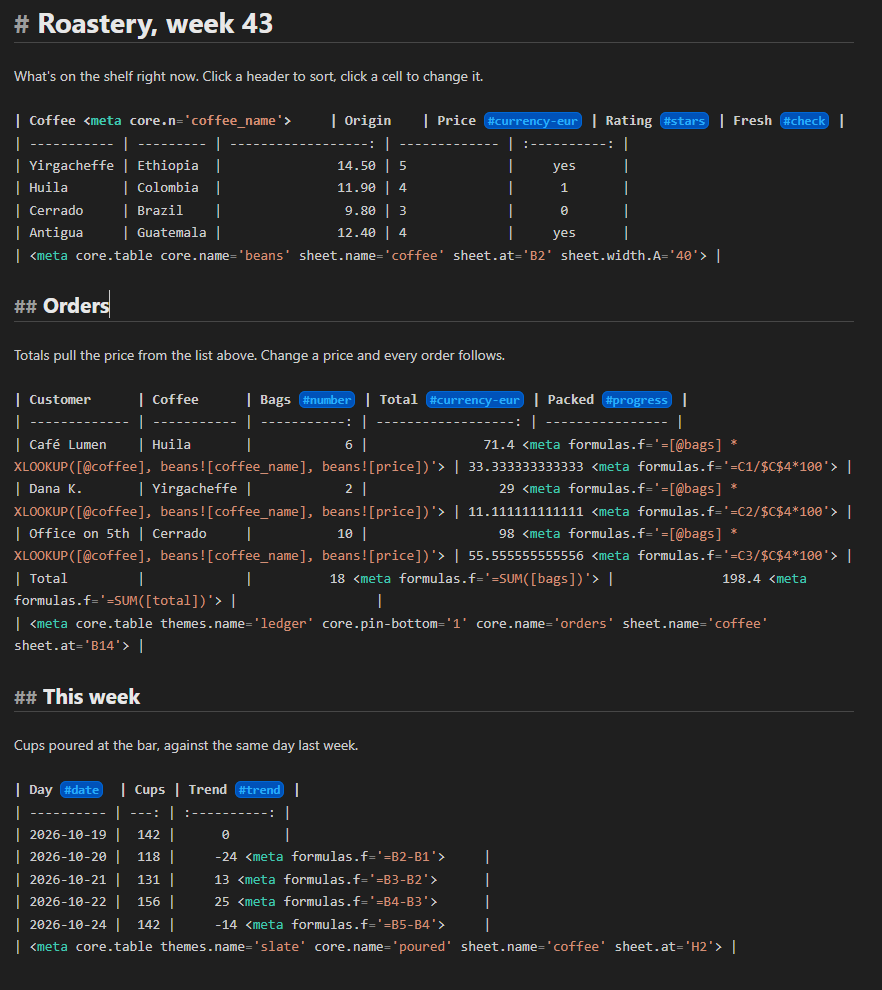
The main idea is that the table stays plain markdown. Every change is an ordinary edit of the page, so undo works, queries and other tools see the same table, and a page looks fine without the library. Anything extra (a formula, a stored sort or filter, a column width) goes into hidden <meta> tags in the cells or in one metadata row, so it doesn't show when rendered.

I use SilverBullet on my phone a lot, so I made sure the tables work there too, not just on a desktop.

What it does so far:

  • editing cells, Enter/Tab to move on, a row added from the last one
  • sorting, a filter row, pinned rows and columns, a header that stays on top
  • formulas (=SUM([qty] * [price]), references to other tables and pages)
  • column types via a hashtag in the header (#currency-usd, #date, #stars…). The idea comes from MdTableRender, and it should be partly compatible with it: its hashtags and aliases like #euro or #int work, its number suffixes like #percent10 don't
  • your own formula functions, column types and AutoFill series, written in JS in your space and registered from Space Lua
  • themes for tables, set for all of them or per table, and your own theme as a few CSS variables in a space-style block
  • copy and paste with Excel or Google Sheets, AutoFill, export to CSV, Markdown and .xlsx
  • a sheet view where several tables of a page sit on one grid

:warning: A word of warning: the API for your own functions, column types and series may still change while the plugin settles, so expect to adjust them now and then.

It also works on a phone: long press for the cell menu, handles to extend a selection, and the on-screen keyboard stays up while you go from cell to cell.

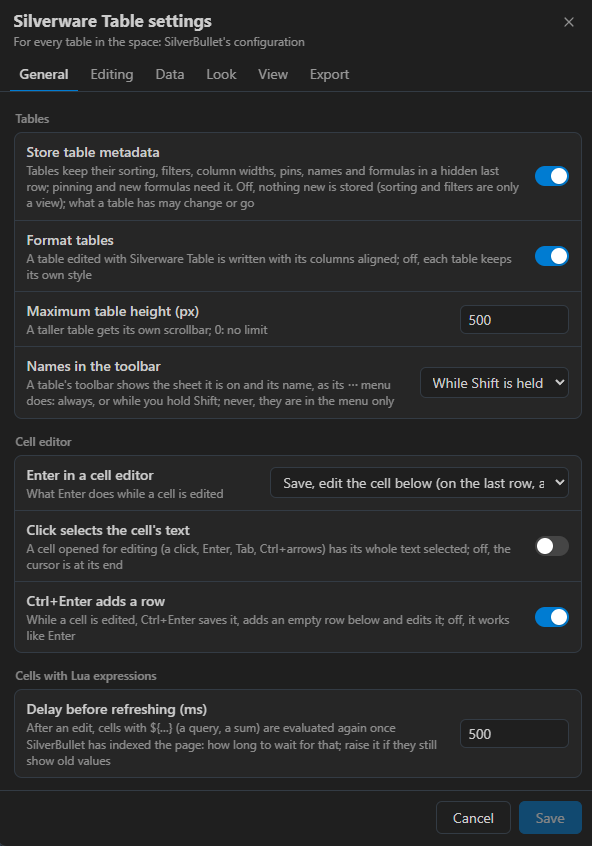
Most of it can be turned off in the settings, module by module.

Of course this couldn't have happened without AI, I'd never have been able to put this much effort into it on my own. But the code grew step by step, one feature at a time, and I kept steering the architecture towards modularity and extensibility.

To install, add the repository with Library: Add Repository:

It's still early, so feedback and bug reports are welcome, ideally on GitHub: GitHub - damesene/silverware-libraries: Silverware: plugins for SilverBullet, installed as libraries. Starting with Silverware Table: interactive markdown tables. · GitHub

Examples:
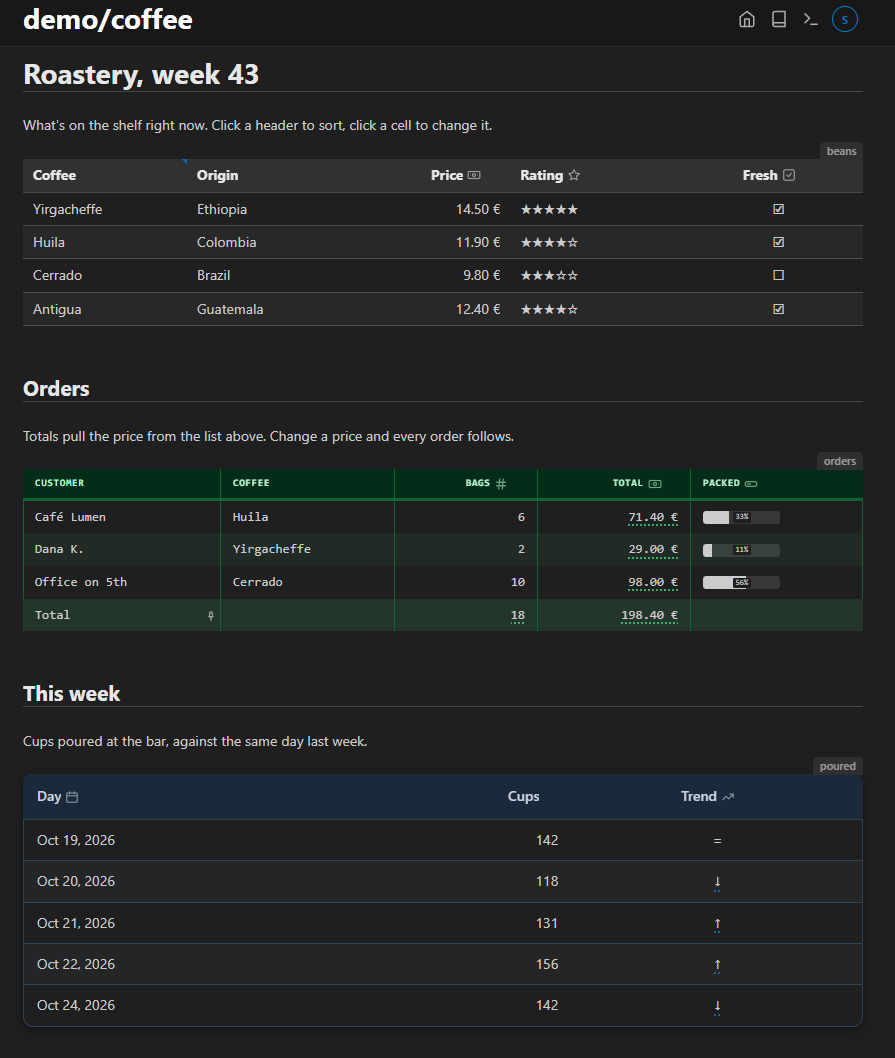


Very nice. And great job on inventing the term “silverware” I love it.

Awesome.... :clap:

Love It, this makes editing Markdown table so much easier! Thank you!

@zef Glad you like the name, it took me a while to come up with it.
@Mr.Red Thanks for the kind words, I'm glad it's useful to someone other than me!

Minor change

I've changed the default for storing table metadata. It used to be off, which meant no metadata could be saved in a table and most features weren't available. Storing metadata is now on by default, but you can turn it off if you want to.

Silverware Table: formulas from Space Lua

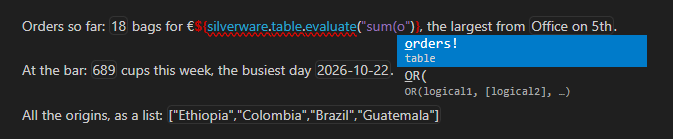
You can now calculate a table formula anywhere on a page, not just inside a table, with silverware.table.evaluate:

This week we have ${silverware.table.evaluate("=COUNTA(beans![coffee])")} coffees, at €${silverware.table.evaluate("=ROUND(AVERAGE(beans![price]), 2)")} a bag on average.

It reads the page's tables by their names, so the formulas work as they do in a cell: beans!B2, beans![price], a named cell like beans!vat, a named row like beans!huila[price], or a table on another page with [[Prices]]beans!B2. Your own functions work too.

  • One value comes back as text, several as a list: ["Ethiopia","Colombia"]. An error comes back as its code, e.g. #REF!.
  • :counterclockwise_arrows_button: The result follows the tables: change a cell and the text updates, also when the table is on another page.
  • Function and table names complete while you type the formula, as they do in a cell.
  • :abacus: The formulas follow your tables too: rename a column or a table, or insert, move or delete rows with Silverware Table, and the formulas in your text are updated with it, in the same edit, so one undo reverts both.

If silverware.table.evaluate is too long to type every time, give it a shorter name of your own. Put this in a space-lua block on any page:

silverware.table.evaluateAlias("f")

Then ${f("=beans!vat")} works just like the full name, completion included. You can add as many names as you like; one that is already taken (like print) is refused with a notification.


In the future

Next I'd like to add charts, built the same way as the tables. A chart would be a plain Mermaid diagram, so it still renders when the plugin isn't loaded or the markdown is viewed outside SilverBullet. Inside SilverBullet, hidden metadata would add more features on top, and a chart could take its data straight from a table.

Fantastic work @Damesene !

Table editing & handling is really smooth now. I see it as a standard plugin needed for silverbullet.

Last week, I was converting few of my tables to lists for copy paste convenience. Now I'm going back to tables with Silverware-table. :slight_smile:

My god !:grin:
It's crazy !

Jumping in to pile on with the compliments, this is really great! Thanks for publishing it!

Thanks, everyone, for the kind words! If there's a feature you're missing, just ask. I can't promise I will make all your dreams come true, but I'm happy to add something here and there.

you just solved 2 of my largest pain points, markdown table is always a pain to work with and i prefer visual button for formatting instead of memorizing the shortcut.

for the table, is there anyway to quickly create a table with custom number of rows and columns? instead of typing |----|-----|

for the toolbar, what is the diff between touch and click? since touch has gesture i guess it is mainly for mobile? and if i want to add a new section i should just add a new row?

sorry for the questions but your implementation is much better than my sloppy lua :rofl:

edit: i hope this isnt too greedy but i was thinking of 2 columns toolbar on mobile

Bug Report: Table Formatter causes excessive horizontal scrolling in raw Markdown view.

Description:
The markdown-table formatting is calculating the width of the separator line (| --- |) and extra spaces in the header based on the widest cell in the entire column rather than the width of the header text or the possible minimum : |:---:|:---|---|

Expected Behavior:
The separator line should be sized relative to the header text to keep the raw markdown readable.

Actual Behavior:
If a data row contains a long URL or long string, the separator line is padded with an excessive number of dashes, making the raw markdown source file extremely difficult to navigate/read.

Reproduction Case:

| ID | Resource Link (Long URL)                                                                                                                       | Type | Description (Detailed Text)                                                                                                  | Status |
| :- | ----------------------------------------------------------------------------------------------------------------------------------------------------------------------------------------------------------------------------------------- | :---: | --------------------------------------------------------------------------------------------------------------------------------------------------------------------------------------------------------------------------------------------------------- | :-: |
| 01 | [https://server-01.internal.system/data/archive/2026/files/massive-directory-name-extra-long-string-identifier/index.html](https://example.com/long-url) | #A | This is a very long description of an item that occupies a significant amount of horizontal space in the cell. | OK |
| 02 | [https://server-02.internal.system/data/archive/2026/files/another-long-identifier-name-for-testing/index.html](https://example.com/long-url) | #B | Short description. | NO |
| 03 | [https://server-03.internal.system/data/archive/2026/files/third-extremely-long-identifier-name/index.html](https://example.com/long-url) | #C | Another moderately long description that adds more width. | OK |

Expected behavior:

| ID | Resource Link (Long URL) | Type | Description (Detailed Text) | Status |
| :- | :----------------------- | :--: | :-------------------------- | :----: |
| 01 | [https://server-01.internal.system/data/archive/2026/files/massive-directory-name-extra-long-string-identifier/index.html](https://example.com/long-url) | #A | This is a very long description of an item that occupies a significant amount of horizontal space in the cell. | OK |
| 02 | [https://server-02.internal.system/data/archive/2026/files/another-long-identifier-name-for-testing/index.html](https://example.com/long-url) | #B | Short description. | NO |
| 03 | [https://server-03.internal.system/data/archive/2026/files/third-extremely-long-identifier-name/index.html](https://example.com/long-url) | #C | Another moderately long description that adds more width. | OK |

@Damesene would you like me to submit a github issue, or is it fine here?

@LostInLua Glad you like it! The click vs. touch option in the favorites settings is only there so you can have a different toolbar on mobile and desktop.
About the two "columns", I guess you meant two rows? I'll think about it. Could you describe how you'd expect it to behave in a bit more detail in the silver-toolbar topic?

@Mr.Red Thanks for the bug report. I normally prefer GitHub issues, but this is fine, no need to duplicate it there. I'm on vacation right now, so I'll look into it next week.

@Mr.Red I've now had a chance to look into it, and you're right that one long cell shouldn't stretch the whole table's markdown.

Some background: with auto-format on, Silverware Table writes a table with its pipes aligned, so each column is padded to one width. That includes the delimiter row: its dashes are stretched to the column's width on purpose, so the | line up from the header down. Prettier formats tables the same way and has no option to turn that off. That's why one long URL gave you hundreds of dashes.

The latest version has a new setting, Long cells (Silverware Table settings, General, Formatting), with two ways of handling them:

  1. Limit column width (the default, silverware.table.formatCellWidth, 40 characters): each column is padded to its longest cell that fits the limit. A longer cell, like your URL, is written as it is, past the column's |, so the other rows and the delimiter don't widen. In your example the link column is as wide as its header.
  2. Compact if too wide (silverware.table.formatLineWidth, 80 characters): if any line of the aligned table would be longer than that, the whole table is written compact, with no padding and a plain --- delimiter. This is what Prettier does with proseWrap: "never". Your table comes out compact; narrow tables stay aligned.

Both apply to auto-format and to Format table in a table's menu, and auto-format can still be turned off entirely (Auto-format on edit).

Let me know whether this works for you.

Silverware Table: pivot tables

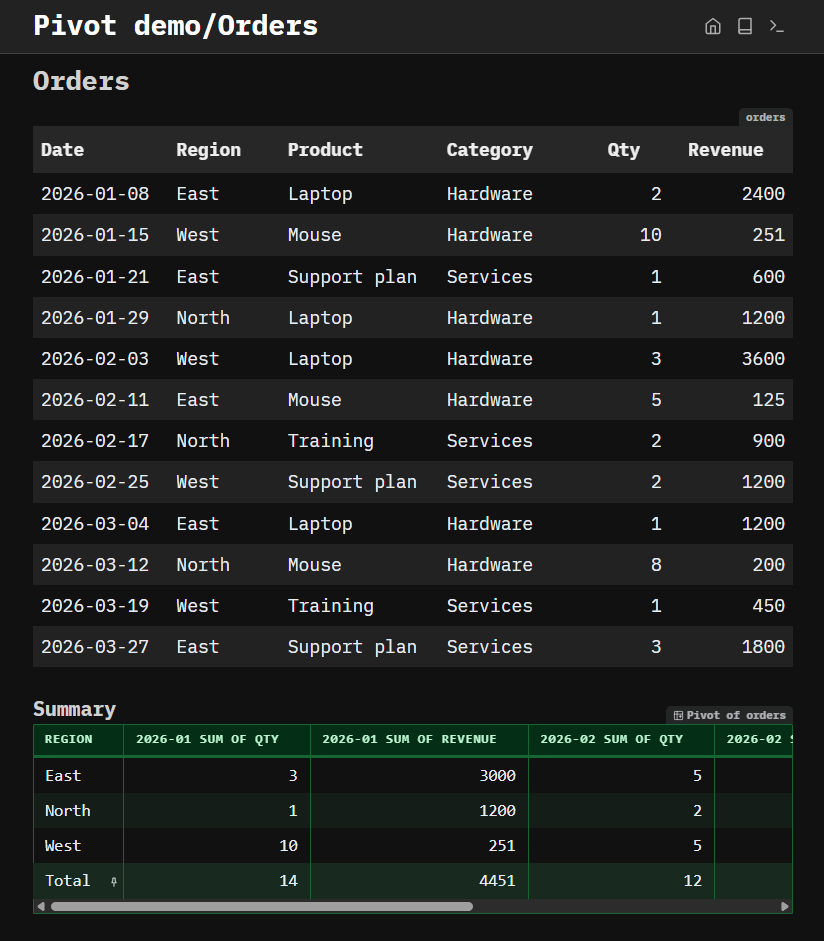
Silverware Table can now summarize a table as a pivot table: its rows grouped, a value for each group, and totals.

A pivot is an ordinary markdown table: its groups, values and totals are written in its cells as text, so it reads the same in any markdown viewer or editor, on GitHub or in a plain text file, with or without SilverBullet and Silverware Table. Only its last row holds its definition, in an HTML <meta> tag, which Silverware Table reads to calculate it anew.

And because it is a table like any other, what Silverware Table does for tables works on a pivot too: themes and stripes, renaming its column headers, column types, column widths, sorting and filtering, full screen and the sheet view, copying it as CSV or Markdown, and exporting it to Excel.

Making one

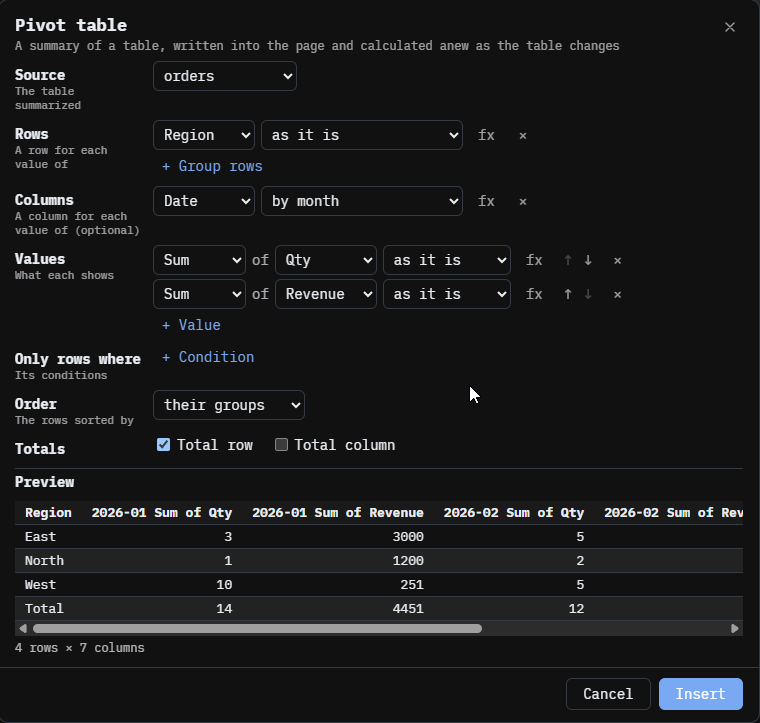
  • Insert pivot table… in a table's ⋯ menu, the Silverware Table: Insert pivot table command, or /pivot typed in the page opens a dialog. The command and /pivot write the pivot where the cursor is.
  • In the dialog, pick:
    • what groups the rows: a column, or a date by year, quarter or month
    • what makes columns (optional, for a cross table)
    • the values: sum, average, count, min or max of a column, each as it is or as a percentage of the total, of its row's total or of its column's
    • which rows count: a column compared with a value, or matching a regular expression
    • the order of groups and values (↑ ↓)
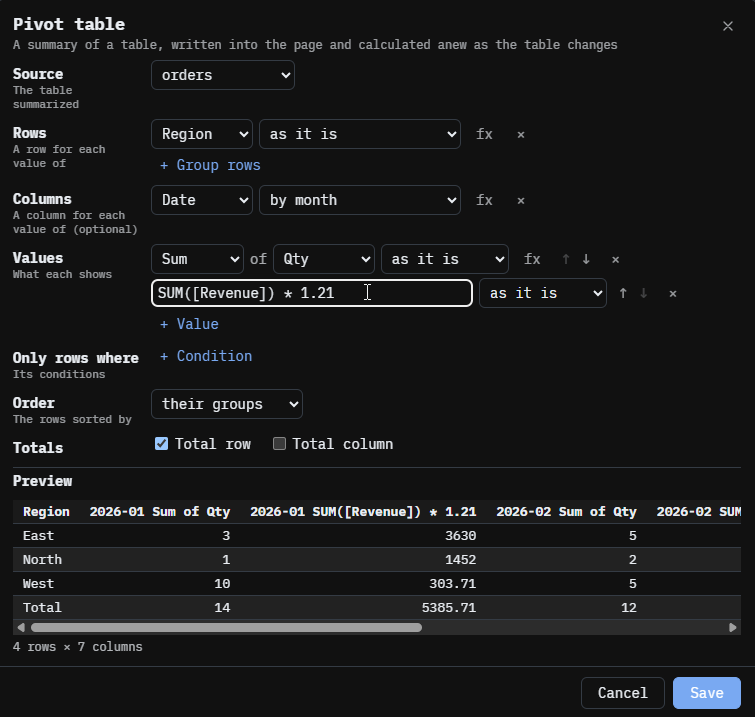
  • The pivot shows under the fields as you change them. A field the dialog has no choice for can be written as a formula (fx).
  • Pivot settings… in a pivot's toolbar opens the same dialog to change it.

What it does

  • It stays up to date. An edit of its source with Silverware Table writes the pivot anew in the same edit, and one Ctrl+Z takes back both. When the source is edited by hand in its markdown, Refresh pivot in the pivot's toolbar is highlighted.
  • A source on another page works too (Another page… in the dialog). It is read as a formula reads another page's table, and Refresh pivot is highlighted once that page changes.
  • Its totals are pinned: the Total row to the bottom, a cross table's Total column to the right.
  • It is protected from edits. Its cells are calculated, so a click on one opens the pivot's settings instead of an editor. Its menus offer nothing that would change its numbers or its shape. Renaming a header still works, and the pivot keeps your name when it is calculated again.
  • You can tell it apart at a glance: a small tab at its top right corner says Pivot of orders.

Out of date, without hovering

Any table whose data are out of date now says so in its tab: a pivot behind its source, or a table whose formula results are stale (for example after you typed in its markdown). You no longer need to hover the table to see the highlighted Refresh or Recalculate.

The definition, for those who write markdown

The definition is in the table's metadata row, in the language of formulas:

| <meta core.table pivot.source='orders' pivot.rows='region' pivot.values='SUM([revenue])'> |

pivot.source, pivot.rows, pivot.columns, pivot.values (with SHARE(…) for percentages), pivot.where, pivot.sort and pivot.totals are described on the library page, under Pivot tables.

Dependencies

The formulas module, and pageLinks for a source on another page. Both are on by default.

Examples:

Silverware Table: conditional formatting and choice columns

With conditional formatting and choice columns in place, Silverware Table now feels complete to me: everything I wanted from tables in SilverBullet is there. That doesn't mean nothing new will come, but from here on I'll most likely focus on other areas.

Conditional formatting

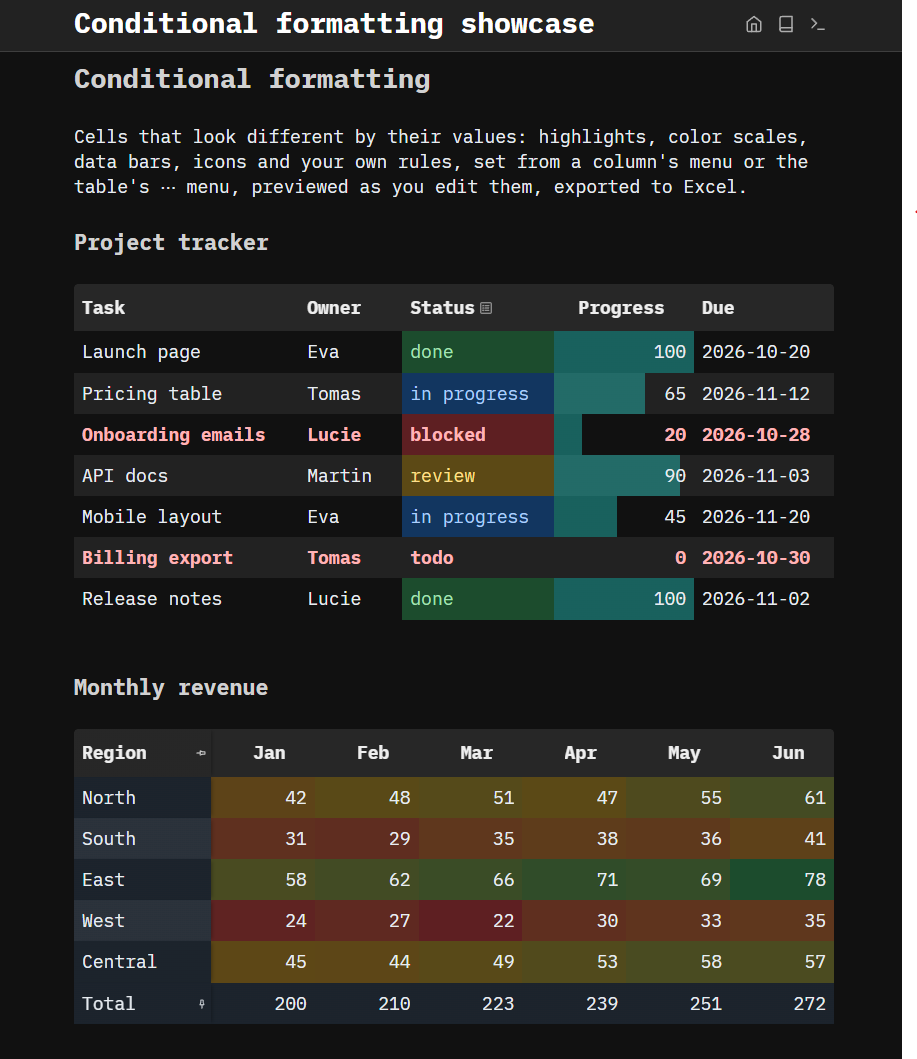
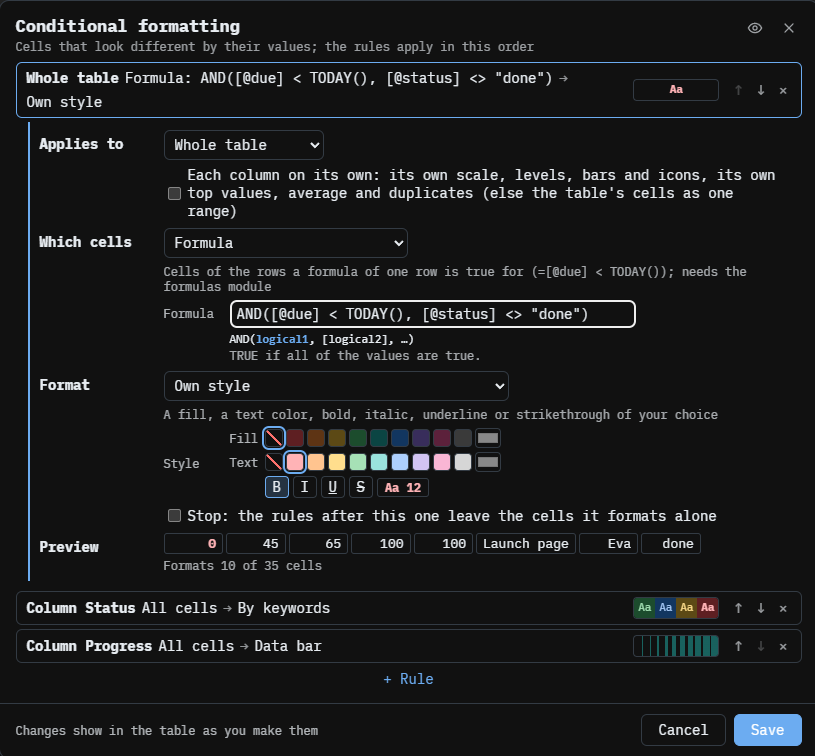
Cells can now look different depending on their values, as in a spreadsheet:

  • numbers over a limit in red;
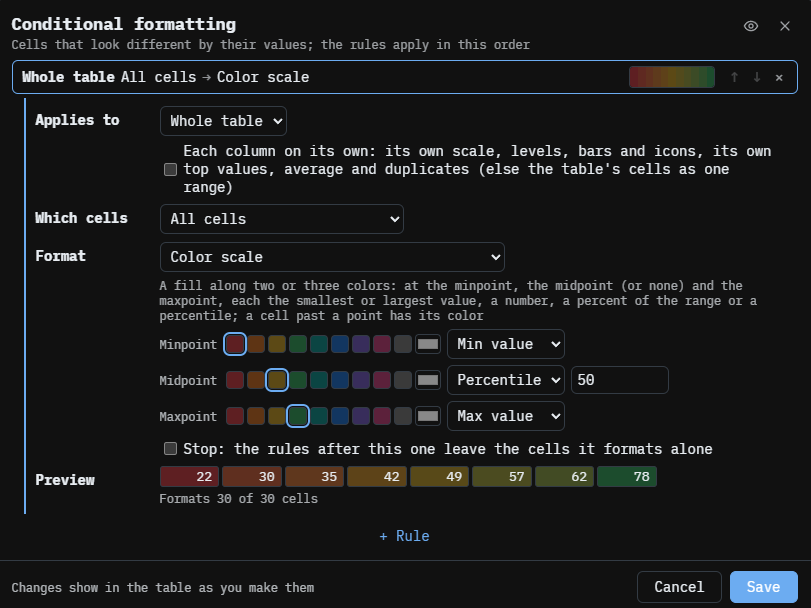
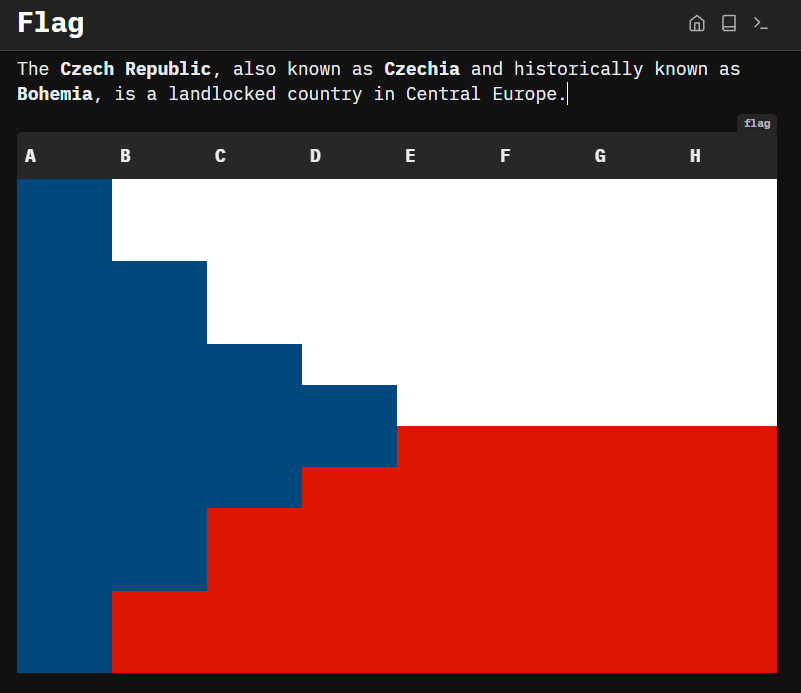
  • a colour scale from the smallest value to the largest;
  • a bar under each number;
  • an arrow or a coloured dot by size;
  • words like done or blocked in their own colours.

Getting started

  • From a column: open the column's menu (right-click its header), choose Conditional formatting and pick a quick rule. The quick rules include Greater than…, Between…, Text contains…, Duplicate values, Top 10, By keywords…, By number ranges…, Color scale and Data bar. The rule opens ready to adjust. Press Save.
  • All of a table's rules: choose Conditional formatting… in the table's ⋯ menu or in the cell menu. A table that has rules also shows the conditional formatting icon in its toolbar.

The rules dialog

  • Order: rules are listed in the order they apply. Change it with ↑ ↓. Remove a rule with ×.
  • Editing a rule: click it to set what it applies to (the whole table, a column or a named row), which cells it formats (all cells, or those that meet a condition) and how they look.
  • Live changes: every change shows in the table at once. Save keeps it. Cancel or Esc puts the table back as it was.
  • Preview: under the rule you are editing, a few of the table's own cells show the rule across their values, with a count of how many cells it formats.
  • The eye button puts the dialog aside so you can scroll, select or edit the table. Back to the dialog brings it back as you left it.

Conditions

Kind Conditions
Numbers greater than, less than, between, equal or not equal to
Text contains, does not contain, starts with, ends with, matches a filter pattern
Cells empty, not empty, duplicate values, unique values
Statistics top or bottom values (a count or a percentage), above or below average
Dates a date in a period around today
Formula a formula of the row, such as =[@due] < TODAY()

The formula field helps you type: it offers the table's columns after [ or [@, offers functions and the page's names as you type a name, shows the syntax of the function you are in, and says what is wrong while the formula does not read.

Formats

  • Ready-made styles: coloured fills with matching text, red text, bold text.
  • Own style: any mix of fill, text colour, bold, italic, underline and strikethrough. Palette colours follow SilverBullet's light and dark mode.
  • By keywords: a style for each word or pattern, using the filter's syntax (words, =done|closed, >10, /regular expression/).
  • By number ranges: a style for each range of numbers.
  • Color scale: two or three colours. Each point is set as the minimum or maximum value, a number, a percent or a percentile.
  • Levels and Heat map: numbers split into levels between two colours.
  • Traffic light, Data bar, Arrows and Traffic light dots: like Excel's colour bars and icon sets.

Good to know

  • Several rules on one cell: they apply in order. A later rule adds only what earlier rules did not set. Stop on a rule leaves its cells to that rule alone.
  • Whole-table rules: a rule for the whole table treats all its cells as one range. Tick Each column on its own to grade each column separately, so quantities are not compared with prices.
  • What is compared: values are compared the way sorting compares them. 12,99 € is the number 12.99, a date is a date, and a formula counts as its result.
  • Never formatted: the header and pinned rows and columns, so a totals row pinned to the bottom does not skew a scale.
  • Storage: rules live in the table's metadata row, so they need the Store table metadata setting. A column's rules follow the column when it is renamed or moved.
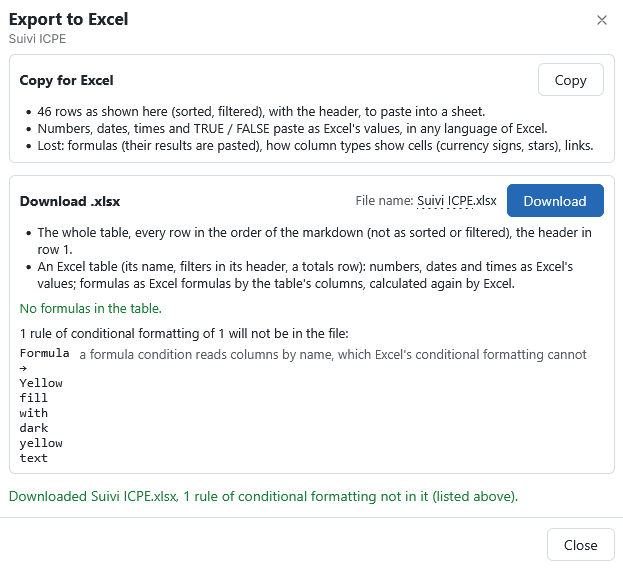
  • Excel export: Download .xlsx writes the rules as Excel's own conditional formatting at least it tries :).
  • Your own conditions and formats: write them in JavaScript in a file of your space, in the same form as the built-in ones. Register them with silverware.table.defineConditions and silverware.table.defineFormats.

Examples

Choice column type

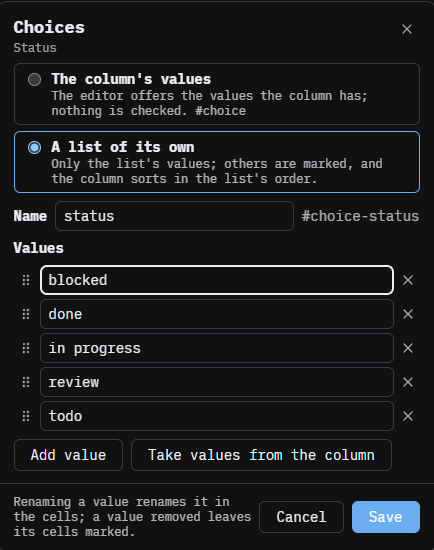
A column can now take one value from a set, such as a status column with open, in progress and done.

  • Setting it up: in the column's menu, go to Type and pick Choice. A dialog asks how the column gets its values:
    • The column's values: the cell editor offers the values the column already has. Nothing is checked.
    • A list of its own: you set up the allowed values. The list starts with the values the column has. Values with spaces work.
  • Order: drag a value by the ⠿ handle on its left, or use Alt+↑ ↓. The column sorts in that order, not alphabetically.
  • Values not in the list are still saved, but show in red. Matching ignores case.
  • Renaming a value in the dialog renames it in every cell that uses it.
  • Sharing and deleting lists: every list of the table shows under Choice in the Type menu, so another column can use it. Delete a list with :wastebasket:. If a column still uses it, you are asked first.
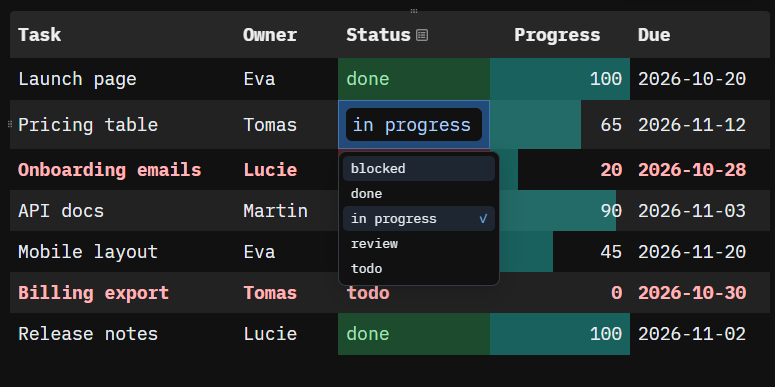
  • Editing later: the pencil in the column's Type: Choice row opens the dialog again.
  • Storage: a list of its own is stored in the table's metadata, so it needs the Store table metadata setting.

Examples

Silverware Table: formulas from Space Lua, and finding formula errors

evaluate now gives values, evaluateText gives text

Space Lua calculates table formulas through two functions now, each for one job.

For a page: silverware.table.evaluateText shows a result as a cell would:

VAT: ${silverware.table.evaluateText("=fruit!vat")}
Fruit: ${silverware.table.evaluateText("=fruit![item]")}

Several values are joined by a comma (Pear, Fig, VAT). An error shows as #REF! and is no longer a hashtag.

For a script: silverware.table.evaluate gives real values:

  • a number, true or false, or text (dates and times as written);
  • a range or a column as a Lua list, so ipairs works right away;
  • an error as nil plus the error: local value, err = silverware.table.evaluate("=nope!A1"), then err.code is #REF! and err.detail says why.
local total = 0
for _, qty in ipairs(silverware.table.evaluate("=orders![qty]")) do
  total = total + qty
end

Short names work for both: silverware.table.evaluateTextAlias("te") and silverware.table.evaluateAlias("ev"). The formulas in their calls complete as you type and follow your tables when you rename or move columns.

Breaking change. evaluate used to give text, with several values as ["Pear","Fig"]. In a page's text, replace evaluate with evaluateText, and make the names you use there with evaluateTextAlias instead of evaluateAlias. Otherwise several values show as a box with a line each, and an error as nil.

Find every formula error

silverware.table.errorsText() shows every formula cell that has an error, in the whole space or on one page, as a table: the page, the table, the cell, the error and why. A click on the cell puts the cursor right in it.

${silverware.table.errorsText()}
${silverware.table.errorsText(editor.getCurrentPage())}

The errors are calculated now, not read from what the cells last stored, so a table that was not recalculated still shows its real errors.

silverware.table.errors() gives the same errors as records for your own scripts: page, ref, table, cell, column, code, detail and formula.

The Silverware Table: Find formula errors command lists them in SilverBullet's picker. Type a page or a cell to narrow the list, and pick one to jump to that cell.

Errors are no longer hashtags

A formula's error is now written as \#REF!. It looks the same, #REF!, but SilverBullet no longer tags the row REF, so your tag list stays clean. Tables written before show Out of date once, and Recalculate writes them the new way.

Good to know

  • Everything here needs the formulas module, and formulas that read another page need the pageLinks module.

Silverware Table: views, array formulas and tables from Space Lua

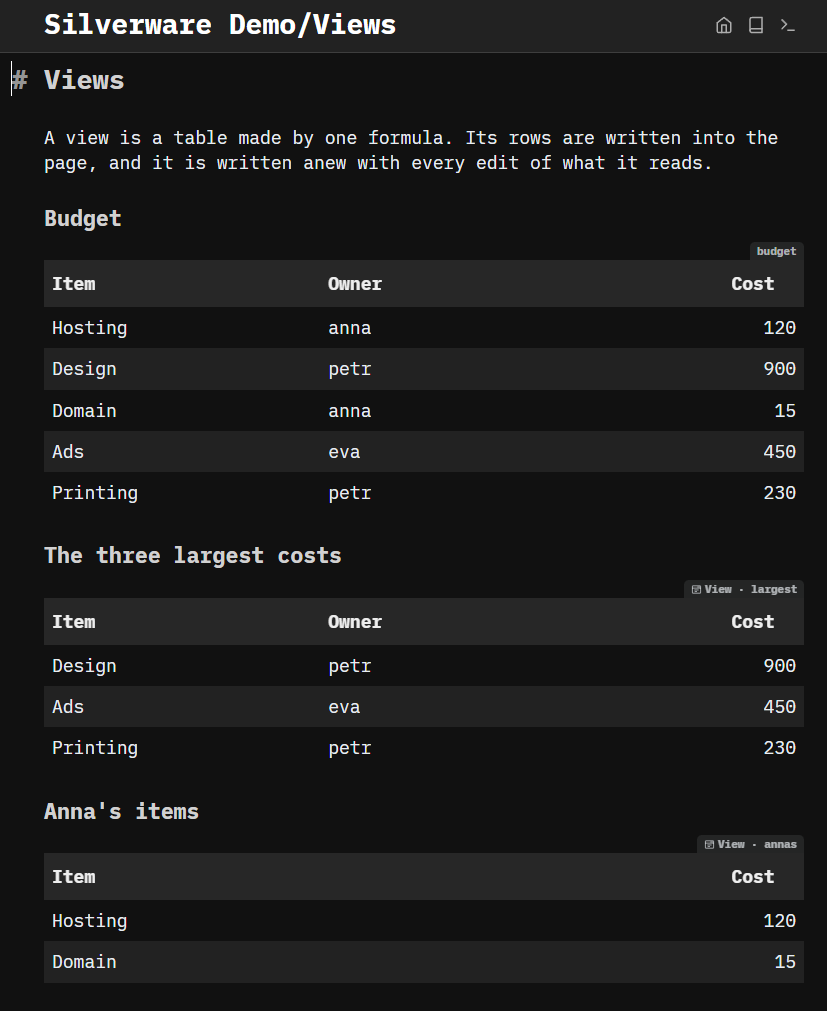
I wrote that Silverware Table felt complete and that I'd most likely move on to other things. That still holds, but one gap kept bugging me: I wanted a table that just is a filtered or sorted copy of another one, without copying rows around by hand. Filling it turned out bigger than I expected. Silverware Table now has views, the functions that make them work, and a way to feed formulas straight from Space Lua queries.

Views

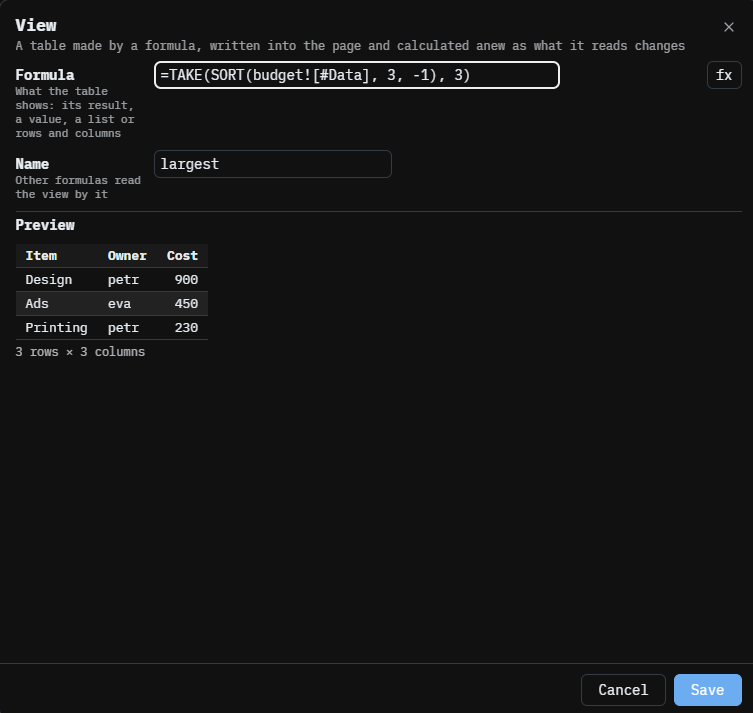
A view is a table made by one formula. Say you have a budget table and want the three biggest items:

=TAKE(SORT(budget![#Data], 3, -1), 3)

Pick Insert view… in the table's ⋯ menu (or type /view), enter the formula, and you see the result as you type. The rows end up in the page as normal markdown, so the table shows up anywhere, including places where the plugin isn't running.

When you edit budget, the view updates in the same edit, and one Ctrl+Z undoes both. If the source changes some other way (another page, a query), the view gets an Out of date label until you hit refresh. Other formulas can read it like any table: =SUM(largest![cost]).

A view is read-only: its cells belong to the formula, so clicking one opens the view's settings instead of editing it, and rows can't be added, moved or deleted by hand. Everything else works as in any table: sorting, filtering, conditional formatting, and renaming its headers (they stay renamed when the view is recalculated).

Array functions

New: FILTER, SORT, SORTBY, UNIQUE, CHOOSECOLS, TAKE, DROP, HSTACK, VSTACK and SEQUENCE. They behave as in Excel 365, and tasks![#Data] refers to a whole table.

They're useful in normal cells too, as long as the result is a single value:

=COUNTA(UNIQUE(tasks![owner]))
=TEXTJOIN(", ", TRUE, FILTER(tasks![name], tasks![owner] = [@name], ""))

If a cell ends up with a whole list, it shows #SPILL!. Hover it and click ⤢ (or press Ctrl+Shift+Enter) to see what's in there.

:star_struck: Tables from Space Lua

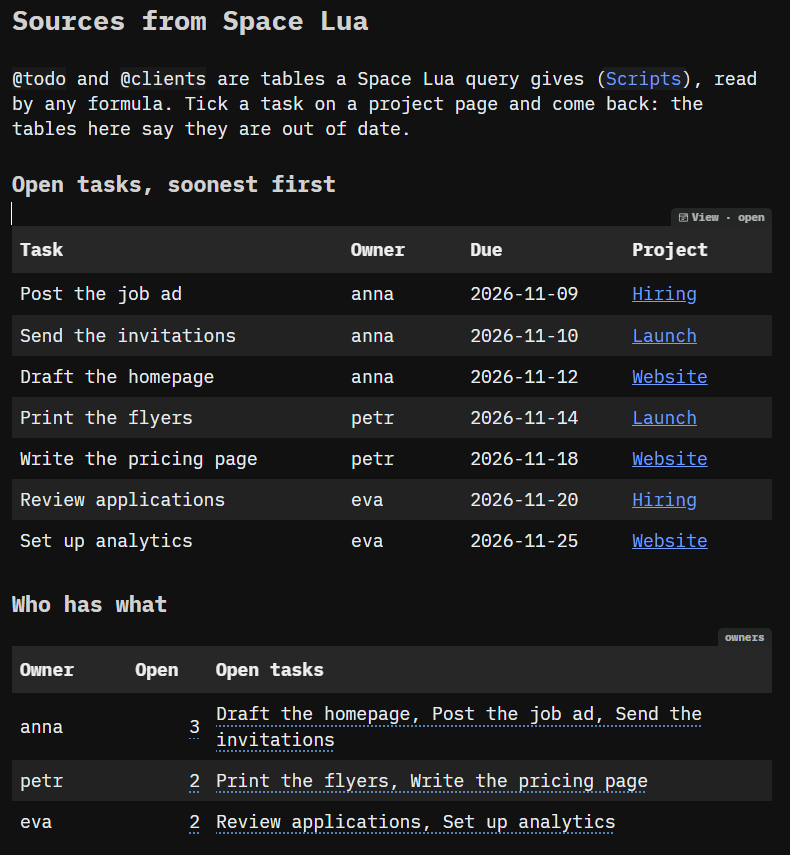
This is the part I'm most excited about. You can turn any query into a table that formulas can read:

silverware.table.defineSource({
  name = "todo",
  columns = { "task", "project", "owner", "due", "done" },
  data = function()
    return query[[from t = index.tag "task"
      select { task = t.name, project = t.page, owner = t.owner, due = t.due, done = t.done }]]
  end,
})

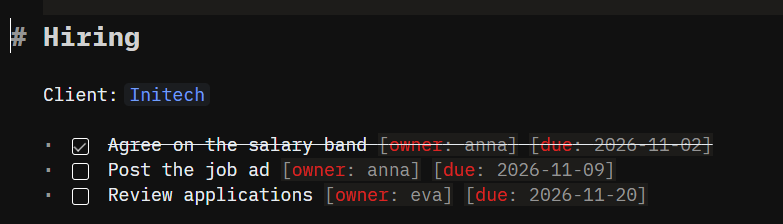
The @ is how a formula reads such a table source: @todo is the whole thing, @todo[owner] one column. Plain names like budget! are tables on the page, names with @ come from your Lua. They work in formulas, views, and a pivot can use one as its source. For example, open tasks per person, or every open task sorted by due date:

=COUNTIFS(@todo[owner], [@owner], @todo[done], "FALSE")
=SORT(FILTER(@todo[#Data], @todo[done] = "FALSE"), 4)


(the tasks themselves live on project pages)

The data refreshes whenever SilverBullet re-indexes your pages. Tables don't change by themselves, though. They show Recalculate or Out of date, and you decide when to write the new numbers.

Choice lists from Lua (or any formula)

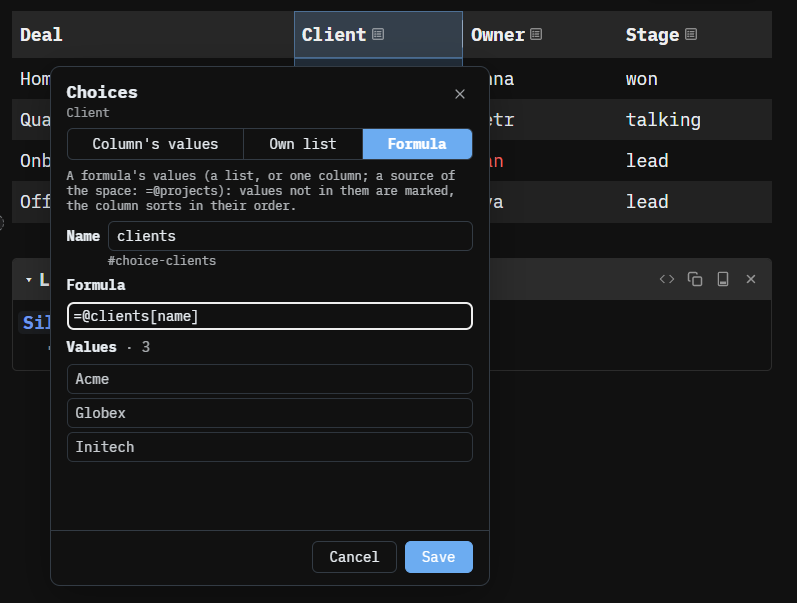
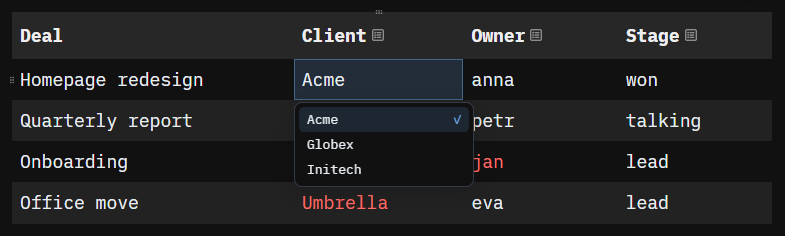
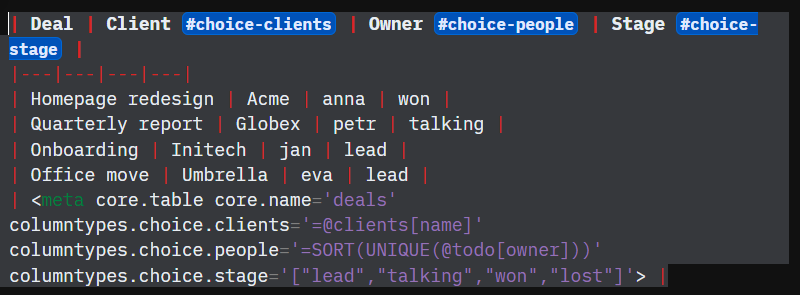
A #choice column can now take its options from Space Lua too. Define a source as above and use it as the column's list: =@clients[name] offers every client your query finds, and the list follows your space as it changes. It doesn't have to be Lua: any formula works, e.g. =SORT(UNIQUE(people![name])) for the names in another table, and a list typed by hand still works as before.

The formula sits in the table's metadata, so you can see in the markdown where the options come from. Values that aren't in the list are marked in red.

@Damesene ,

Thanks again for this really nice product !
It seems downloading .xlsx file does not do the job correctly for me.
I get a message saying (instantanly) the file has been dowloaded but I cannot find it anywhere even in the space area, no browser notification, nothing in downloads....
I'm wondering if it is because I am serving SB from a docker container (though space is outside of the container)....

Thank you for the report, it is my fault. I'll try to fix it today evening.

@JmiXIII The fix has been deployed, so it should work now!

Works perfectly thanks for the quick fix.