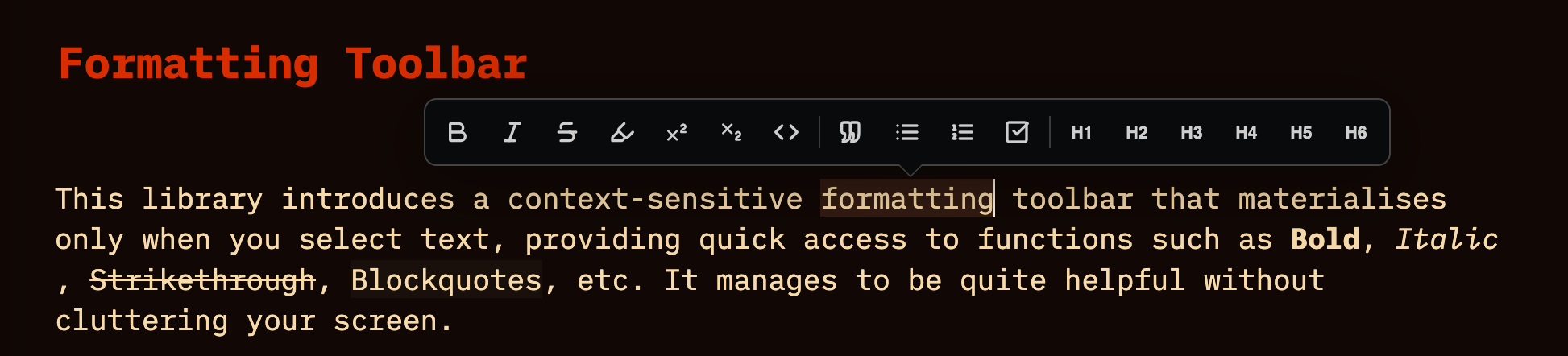
I was missing an easy way to format certain selected text using the mouse, and also because I can’t always remember all the shortcut keys in Silverbullets I created thus Formating Toolbar for basic text formatting, which appears everytime you select text.
Here is the progress until my claude token limit refreshes in 5h
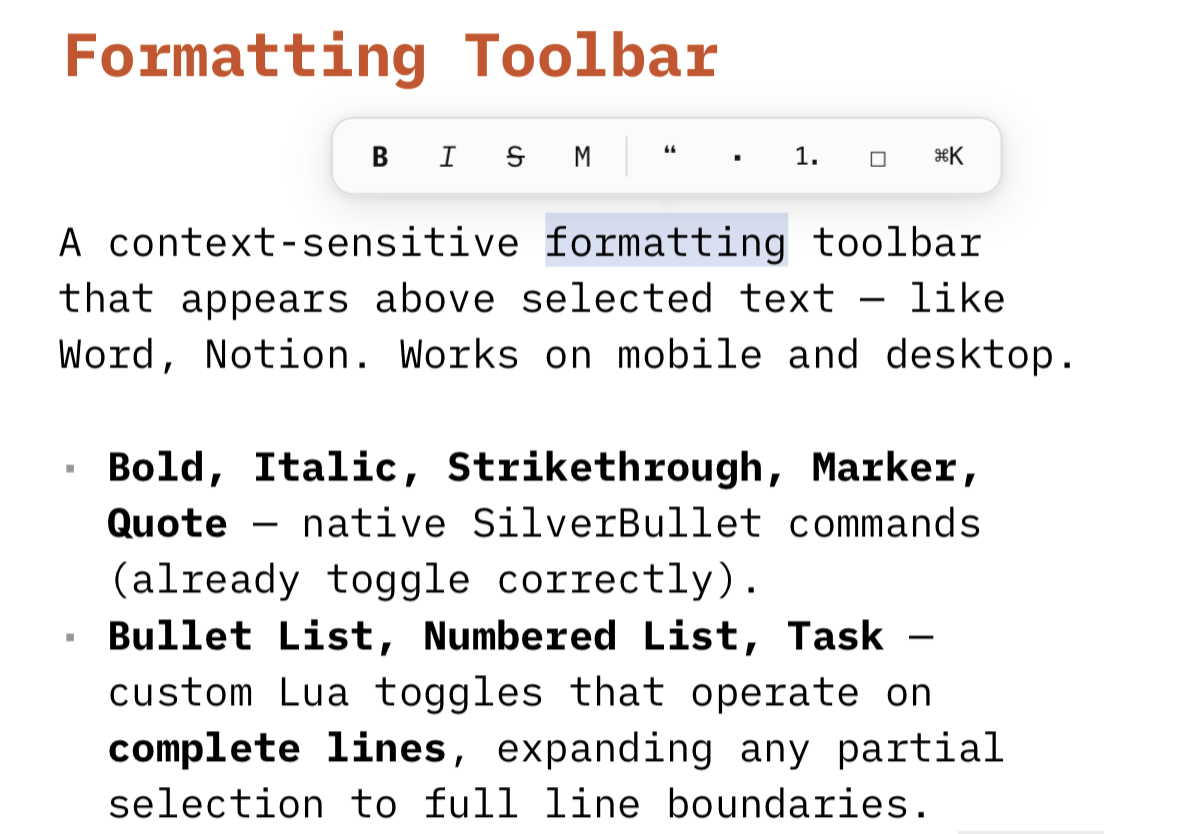
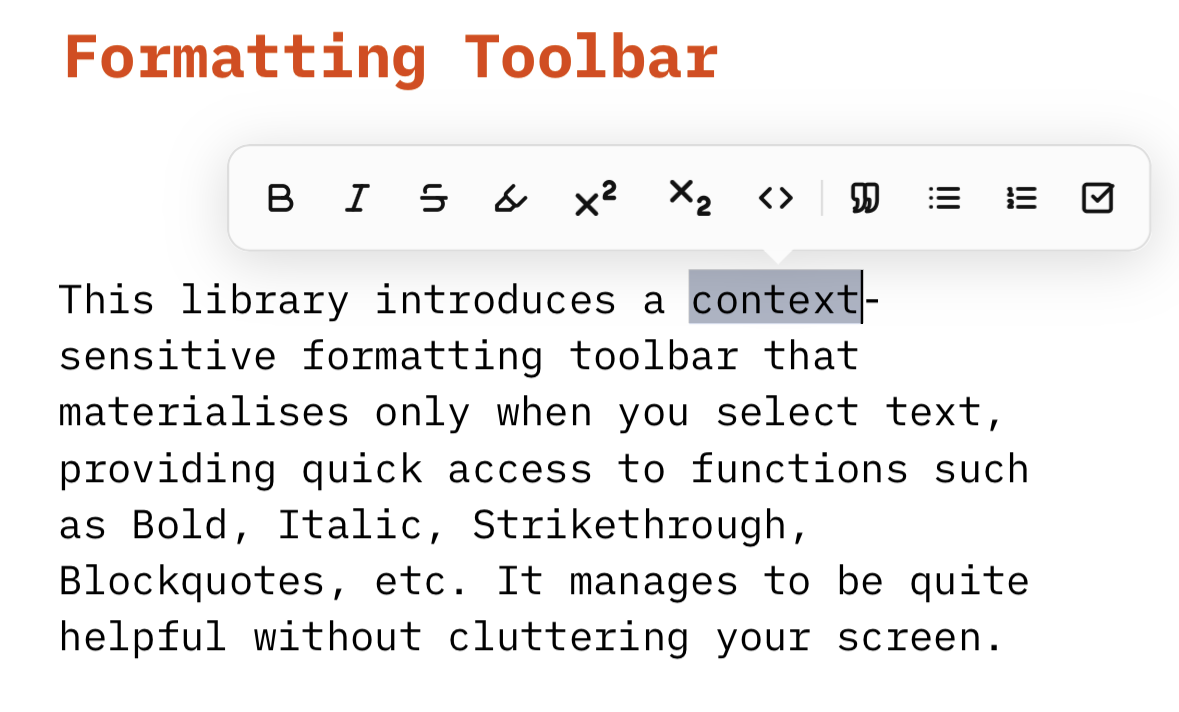
I am pleased to introduce the Formatting Toolbar, a context-sensitive interface designed to streamline your markdown workflow. This library remains hidden until you select text, at which point it appears near your cursor to provide immediate access to common styling and structural tools. It is built to be theme-aware, supporting both light and dark modes.
Key Features:
• Contextual Visibility: The toolbar only materialises during active text selection to keep your workspace clutter-free.
• Inline Styling: Quick toggles for Bold, Italic, Strikethrough, ==Marking==, Code, and Sub/Superscript.
• Block Formatting: One-click conversion for Bulleted lists, Numbered lists, Task lists, and Blockquotes.
• Customisable: Toggle specific buttons on or off via the FormattingToolbar configuration.
• Responsive Design: Intelligently positions itself above or below the selection to avoid screen edges.
Instantly installed for use in mobile and found it useful.
Your contributions have enhanced silverbullet usage experience. You deserve a silverbullet golden award
Few usage observations (using Chrome on Android),
In mobile, upon selecting a text, I get "Cut Copy Paste Select all" overlayed on top of the Formatting Toolbar. So I have to tap elsewhere to close it in the first place to use the formatting toolbar.
I checked the behavior in Notion. I see the bar appears on top of the keyboard. This behavior is good as I can use both the default functions (Cut copy paste) and the formatting toolbar.
Ability for an end user to extend the default functions would be nice to have. I might want to add H1, H2, ... for instance.
As a user of Mobile friendly toolbar, I wish to have a unified toolbar. For instance I have the Mobile friendly toolbar always on, and when selecting a text the toolbar content updates to Formatting Toolbar buttons. A rather simpler way to achieve that is to show the Formatting toolbar on top of Mobile friendly toolbar.
I understand this would be a nice addition, but there is no easy/beginner friendly way to add extensions/function/commands to the toolbar...
The first issues is that the Button graphics are using lucide icons (inline SVG's). and i can't expect from beginner users to go and search for matching svg's, copy the path codes, and add them as icons to their commands. as a fallback i could accept Emoji/Unicode Characters as button icons, but they are unintuitive and uglye :P, so i don't quite like this option.
the second issue is the command itself there are two comand types in the toolbar:
one to handle the exact selction (Bold, Italic, Strikethrought etc.)
and the other to handle the whole line and add a formatting pattern to where the line starts (List, Task, Quote etc.).
so by this logic we would need at least 3 attributes for the extra button customisation(icon, formatting type(selction/line), and format pattern(e.g.: "# ", "## " etc.))
it's not impossible, but need to think about a smart way to implement it, and also if this is a faeature if the majorit of user would use this, or it's only a feature appealing to experienced users only.
So for this features i also need some time to think through it, what would be the best way to tackle this too. until then i invite you to use my HeaderLevelToggle Library which toggles H1-H6 using Ctrl-1 -> Ctrl-6 keys. This is the reason i didn't added them by default, because for me i's easier to press ctrl-1 for a level 1 heading than to select a text and chose the H1 option from the toolbar. As an option i might add H1-H6 toggle to the toolbar hidden by default, and people can enable them using the config.set options.
as i don't have an android device to test this feature, and on Desktop and iOS the FormattingToolbar doesn't collide with existing toolbars, i cannot fully test it. i could do this with mobile specific css, to handle the mobile devices, but i cannot fully test it if it looks good or not, or if it solves the overlapping Android context menus.
After you do a “System: Reload” to reload the widget and system luas, you also need to Refresh the page (F5 or Ctrl-R or "Client: Reload UI"). And then it works normally.
I cant figure out why this happens. What i guess is, some duplication remnants in the memory (i dont know if this is a Silverbullet issue or issue with the Javascript). I noticed this or similar behavior in other libraries too, so it might be a SB bug, but i'm not sure, and cant identify it, that's why i didn't opened a bug report because i'm not sure where this comes from.
But like I said if you do a Page Reload after you reload the page everything should work fine.
If you don’t do “System; Reload” in your current instance, you don’t need the Refresh either.
The more times you press the "System: Reload" the more repeated inconsistencies you'll get, just to prove a point did here 8x "System: Reload" :
but after a Page Referesh(F5 or Ctrl-R) everything turns back to normal.
So back to your example above i guess you did 3x "System: Reload" before trying to format and you got: **2026-04-09**09**09**09** Argomenti Attivi
but it's not in my main library yet. it still needs some testing. the problem is i cant test in on android mobile so, here is FormattingToolbarWithMobileSupport Gist for testing purposes, could you @LogeshG5 or anyone else please test it and give some feedback, if it works on your mobile reliably, I would release it on my repo.
This is amazing. This makes accessibility on mobile so much better.
Would it also make sense to also add undo/redo buttons to the toolbar? Although, when I think about it it does not make sense since this is a formatting and not general actions...
This is awesome, thank you! Despite having used markdown frequently for over 10 years, my terrible memory still has trouble keeping a lot of it readily accessible, so this is great!
if the selection is betwee 1-10 words it will use `simple code` formatting
if it's more than that or multiline, it will expand the selection to the nearest new line start and end, and it will transform the selection into multiline codeblock:
```
multi
line
codeblock
```
i never used footnotes before, but i will look into the syntax, and see what i can do
This behaviour been bothering me, so i looked into it using claude, and we managed to fix this, the bug was indeed inside my library this was the reason:
This is a listener leak. The two js.window.addEventListener("fmttb-poll", ...) and js.window.addEventListener("fmttb-cmd", ...) calls live at the top level of the script, so every System: Reload registers a new copy without removing the old one. The DOM toolbar is guarded (getElementById check) so it doesn't duplicate, but the Lua-side listeners keep stacking — 3 reloads = 3 fmttb-cmd handlers firing, hence 090909.


 ,
, Done kinda (added H1-H6 buttons) &