This guide will help you setup silverbullet.exe to run as a background service and startup it with your Windows bootup.
Silverbullet is not meant to run like this,
but nevertheless I have positive experience to run it like this, if you want to run it only locally on your computer.
Here are the steps:
Step 1. Setup Environmental Variables
- Press
Win-R - Open User Environmental Variables:
rundll32 sysdm.cpl,EditEnvironmentVariables - Add following three USER VARIABLES using the
Newbutton :
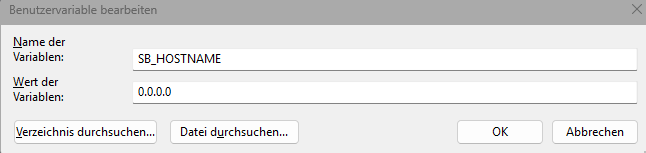
Name: SB_HOSTNAME
Value: 0.0.0.0 or 127.0.0.1
Name: SB_INDEX_PAGE
Varlue: YourWelcomePage
Name: SB_FOLDER
Varlue: C:\Path\To\Your\Space
You can also set up other variables if you want to.
Step 2. Create a new text file: silverbullet.ps1
# ⚠️ OPTIONAL----------------- Backup Silverbullet Notes -----------------------------
$source = "C:\Path\To\Your\Space\*"
$destination = "C:\Path\To\Your\Space_Backup\"

if (-not (Test-Path $destination)) {
    New-Item -Path $destination -ItemType Directory | Out-Null
}

Try {
    Write-Host "`nStarting backup from $source to $destination ..." -ForegroundColor Cyan
    Copy-Item -Path $source -Destination $destination -Recurse -Force -ErrorAction Stop
    Write-Host "`n Backup completed successfully: $destination" -ForegroundColor Green
} Catch {
    Write-Host "`n Backup failed: $($_.Exception.Message)" -ForegroundColor Yellow
}

#  ✅ REQUIRED----------------------------------- Silverbullet ------------------------------------
# Terminate any running instance first
Try {
    Stop-Process -Name "silverbullet" -Force -ErrorAction SilentlyContinue
} Catch {
    Write-Host "No running Silverbullet instance found."
}

# Start Silverbullet in hidden window
Start-Process -FilePath "C:\Your\Path\To\silverbullet.exe" -WindowStyle Hidden
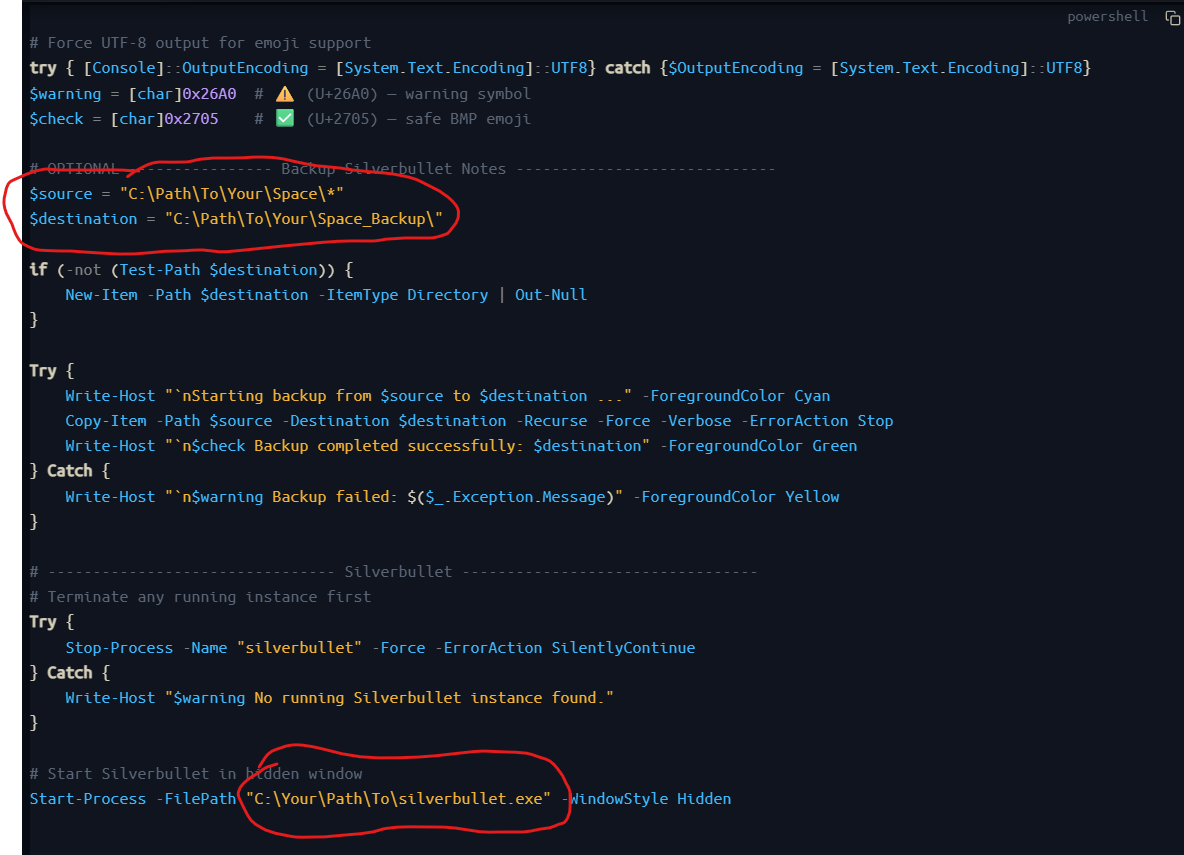
- Make sure to change the 3 folder paths to match your
spaceandsilverbullet.exelocations - If you don’t need you can can delete or comment out the Optional Backup part.
Step 3. Create a shortcut for your PowerShellScript
and point it to your PowerShell and and silverbullet.ps1 file like this:
C:\Windows\System32\WindowsPowerShell\v1.0\powershell.exe -ExecutionPolicy Bypass -File "C:\Path\To\Your\silverbullet.ps1"
- Don´t forget to change the path!!!
- if you want to hide it select “Execute: Minimized” option
Step 4. Add it to your AutoStart to run when Windows boots up
- Press
Win-R shell:startupEnter- Copy your Shortcut created under Step 3 into the AutoStart folder
Step 5. Execute the Shortcut
- DoubleClick the Shortcut
- Point your browser to:
localhost:3000
 You´re done