Thank you!
Really nice tool! It fits in quite nicely with the journal structure I was already using. Is it possible to instantiate templates on the days where the note doesn’t exist already?
This is abolutely possible, doing it myself.
Try adding something like that (sorry its german, have no time to translate, but you should get the point. It runs as soon as you try to open a new page under the “Journal” path and creates a new basic Journal page. Of course you are able to pre-fill everything you like instead of the texts in my example:
```space-lua

event.listen {
  name = "editor:pageCreating",
  run = function(e)
    print("neue Seite")
    if not e.data.name:startsWith("Journal/") or not e.data.name:find("_") or not e.data.name then
      print ("Keine Journalseite:" .. e.data.name)
      return
    end
    -- getGPSposition()
    local DayLong = { Mo = "Montag", Di = "Dienstag", Mi = "Mittwoch", Do = "Donnerstag", Fr ="Freitag", Sa="Samstag", So = "Sonntag" }
    local mydateString = string.gsub(e.data.name, "Journal/", "")
    local dayShort = string.split(mydateString, "_")[2]
          mydateString = string.split(mydateString, "_")[1]
          mydateString = string.split(mydateString, "/")[3]

     local text = [[---
date: ]] ..  mydateString  .. [[

day: ]] .. DayLong[dayShort] .. [[

tags: Journal
---

# ]] .. DayLong[dayShort] .. [[

# Blabla 1
## blabla 2
]]


return { text = text , perm = "rw" }
  end
}
```
Yes it’s possible.
And I tried it as an experiement to add it to the code, but it comes with a drawback by assigning a template directly to the opened page. if you click on an “empty” day and if the page template is applied, it actively creates the page the moment you clicked the date. So clicking on random days, will actively create those pages. So I abandoned this method, because I usually click-click on dates in the calender even when i don’t want to create a journal entry, and I usually ended up with lot’s of ghost pages.
One Solution could be to create a SlashCommand (like: /initJournal or something similar), and use it to apply a template on the empty page.
Or if you like it simple and automations you could use the better approach by @zeus-web 's method described above.
[later edit] - I completely forgot about the pageCreating event, nice one @zeus-web
Here is a stripped down to the basics, simplified non-verbose version as alternative, but still does apply a simple template, using @zeus-web’s approach:
local template = [[---
created: "]] .. date.today().. " " ..date.time() .. [["
---

# Journal Entry

|^|
]]

event.listen {
  name = "editor:pageCreating",
  run = function(e) if not e.data.name:startsWith("Journal/") then return end
  return { text = template , perm = "rw" } end
}
Next step, auto-deletion if no edits were made…
Actually that’s already the case if you don’t edit the empty entry/template, the note isn’t saved, so it only saves the new journal entry if you modify/edit it.
would it be possible to read the template string from the template page instead of hardcoding it? I’d prefer that to keep my stuff DRY. I’m just concerned about passing in the date of the clicked date, since the template page just uses date.today().
what do you have in mind on using in the template file.
you can use any page as template, but it won’t evaluate the lua functions inside them. if you have functions in the template, this simple approach will only get’s the template as string and no functions. to use functions or REAL Template files it’s more complicated to implement.
here is a simple approach to get the contents of the template as string from an external page
local template = space.readPage("Library/Custom/NewJournalEntry")

event.listen {
  name = "editor:pageCreating",
  run = function(e) if not e.data.name:startsWith("Journal/") then return end
  return { text = template , perm = "rw" } end
}
my current template looks like this:
${"$"}{cbt_journal.navigation_section("^Journal/%d+%-%d+%-%d+$")}
> **quote** Daily Affirmation
> ${cbt_journal.affirmations_section({ "I choose to focus on what I can control rather than what I can't.", "I release the need to anticipate worst-case scenarios.", "I am enough just as I am, and I strive for progress, not perfection.", "My mind is clear, focused, and free from unnecessary worry.", "My presence is enough, and I contribute positively to any social setting.", "I am deserving of love, understanding, and positive connections in my social circle.", "I am not alone in this; I can reach out for support and understanding.", "I will live life on my own terms, not according to societal expectations.", "I will not settle for less.", "I will not force myself to do anything that makes me uncomfortable, even if it seems rude to others.", "I will love and accept myself exactly the way I am." })}
# ${date.today()}
${"$"}{cbt_journal.feelings_section()}
${"$"}{cbt_journal.tracker_section({
family = "👪",
house = "🏠",
projects = "👨🏻💻",
fitness = "🚲",
gaming = "🎮",
writing = "✍️"
})}
## What's been on your mind?
- |^|
## Completed Tasks
${"$"}{query${"[["}from index.tag "task"
select { ref = ref, task = name }
where _.done and _.completed and _.completed:startsWith("${date.today()}")]]}
## Check-Ins
${"$"}{cbt_journal.checkins_section("Journal/${date.today()} ")}
${"$"}{widgets.commandButton("Check-In Now", "CBT Journal: Check-In")}
The header, completed tasks, and checkins section all use the date.today() command when rendering the first time. Perhaps I could write the clicked date to the frontmatter and read from that instead?
here is the event listener to evaluate the functions before inserting them to the page this way you can add functions to your template which will be then interpreted before applying them to your page:
event.listen {
  name = "editor:pageCreating",
  run = function(e)
    if not e.data.name:startsWith("Journal/") then return end
    local rawTemplate = space.readPage("Library/Custom/New_Journal_Template")
    local tree = markdown.parseMarkdown(rawTemplate)
    local expandedTree = markdown.expandMarkdown(tree)
    local template = markdown.renderParseTree(expandedTree)
    return { text = template, perm = "rw" }
  end
}
I still don’t understand why are you concerned on using date.today() in your template?
Also I don’t understand what is the problem with that? don’t you want the creation timestamp to be used in your template? then don’t use date.today() in your template. don’t seem to grasp the issue.
I already have a dedicated button for opening today's note, which uses the template already. But if, say, midnight just passed and I want to write a note in yesterday's journal page still, I currently don't have a great way to get that page to exist with the template in place. I would love for the floating calendar to provide a way for me to just click yesterday's date and get that page, setup correctly for yesterday's date. Both date.today() and the creation timestamp would be inaccurate in that case though.
I understand now, but that's only half of the truth.
People usually want their "current" date/time/metadata in their journals as well. so basically depending on that we have to consider two options:
- Initialize Journal for Current Date/Time (which will get the Date and Time from the OS) - Template A
- Intialize Journal for Date of the Page I'm Creating (which will get the Date (time irrelevant) from the Page template we are currently creating) - Template B
this has indeed nothing to do with the JournalCalendar Itself, you can setup this behaviour regardless of what the JournalCalendar is doing. The Journal Calendar only opens an empty page (if the journal entry is not existing) or opening the existing page.
So how you handle the templating is up to your own setup, and the possibilities are endless.
What i can recommend you doing when creating a new Journal Entry you only add two Buttons:
- [Initialze for Now] - this will use Template A for the current date & time
- [Initialize referenced Date] - this will use Template B for the date referenced by the page
But again this is only a personalised settings for you only, i cannot implement this in Journal Calendar intself because this setup is dependent to your own use case and workflows. but what i wanted to say, that it's possible to implement this on your side without touching the JournalCalendar code.
if you want we could cook up together a space-lua script to handle your use case in particular, but that would be offtopic here imho.
Have a look at my code pasted above. I basically had similar thougths, when I created that.
In my version the date-variable is filled from parsing the filename.
So if you click on a (unused) date in the floating calendar, a new file is created with the date from the calendarentry and opened. And you can use the "new" date within your template, too (as far as you use the template in the function directly, like I did). Yes not as comfortable as using a template file, but it works 
[UPDATE]
Inspired by @jagwarrx 's implementation of ItsyCal Design, I also updated the Floating Journal Calendar:
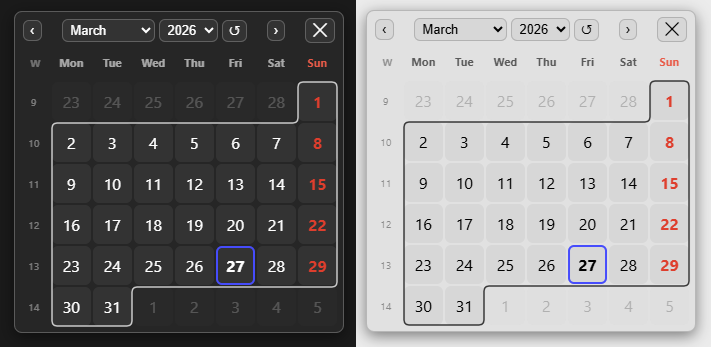
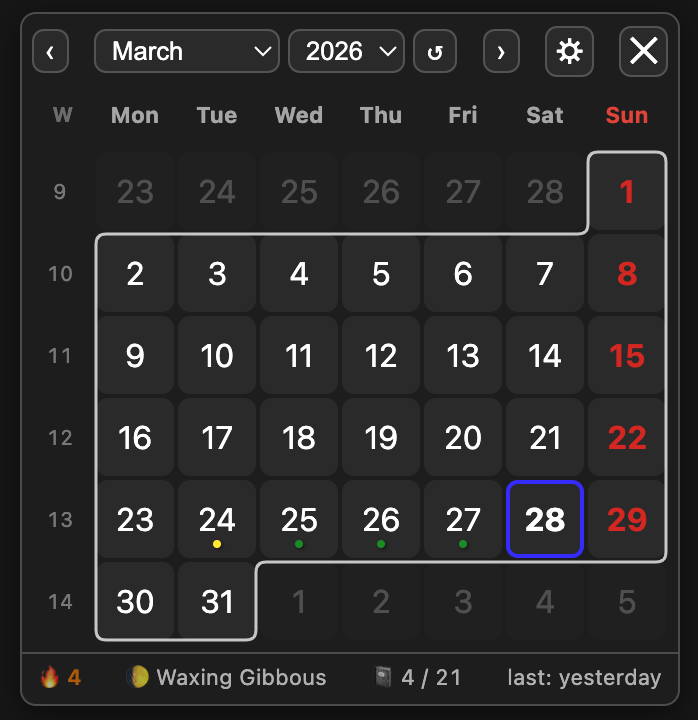
- now outlines the current month in ItsyCal-Style for a more focused view on the current month
- added week-number (
weekNumberSystem: 'iso' / 'us' / 'simple' - read more in the documentation) - added weekly notes (if you click the week number on the side) with its own
weeklyNotesPathPattern
Already working on the next itearation with new features(not yet available):
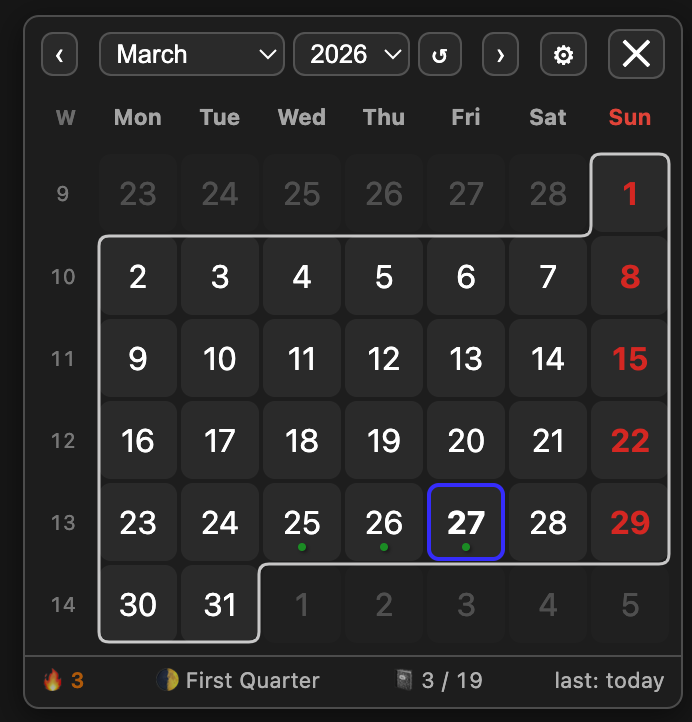
This is still a little buggy and need to solve some issues and styling inconsistencies.
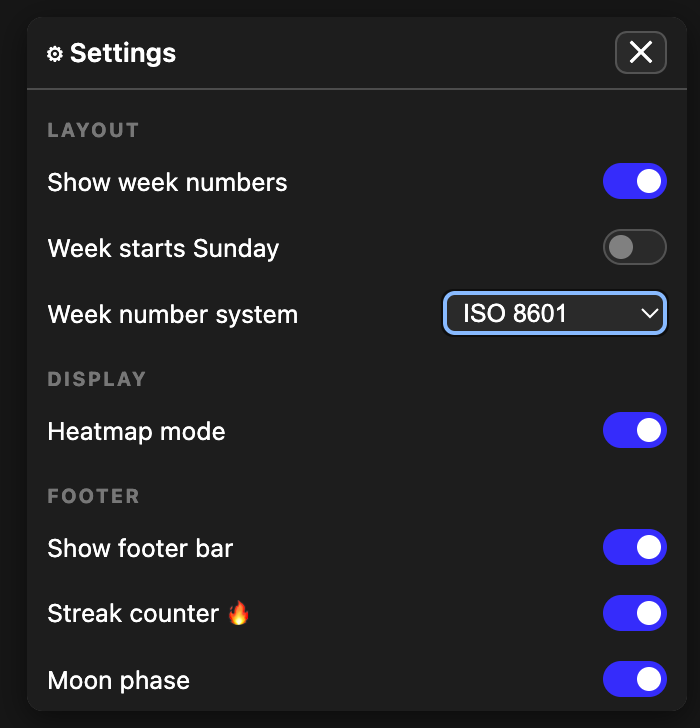
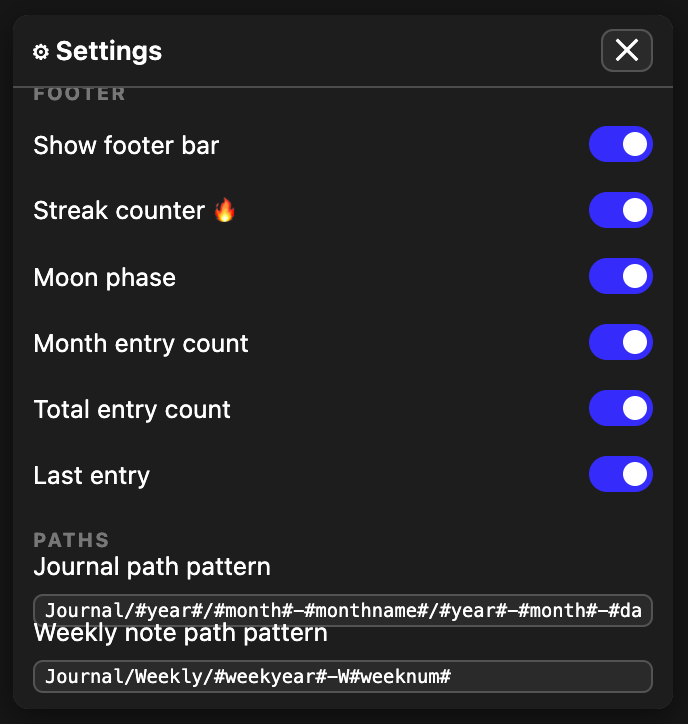
I will also add a Settings button to toggle the new features/fîelds on/off instead of needing to config them through the space-lua block:
[MAJOR UPDATE]
New stat footer with:
- Streak count
- Moon phase
- Journal entry counts:
current month / total - last journal entry
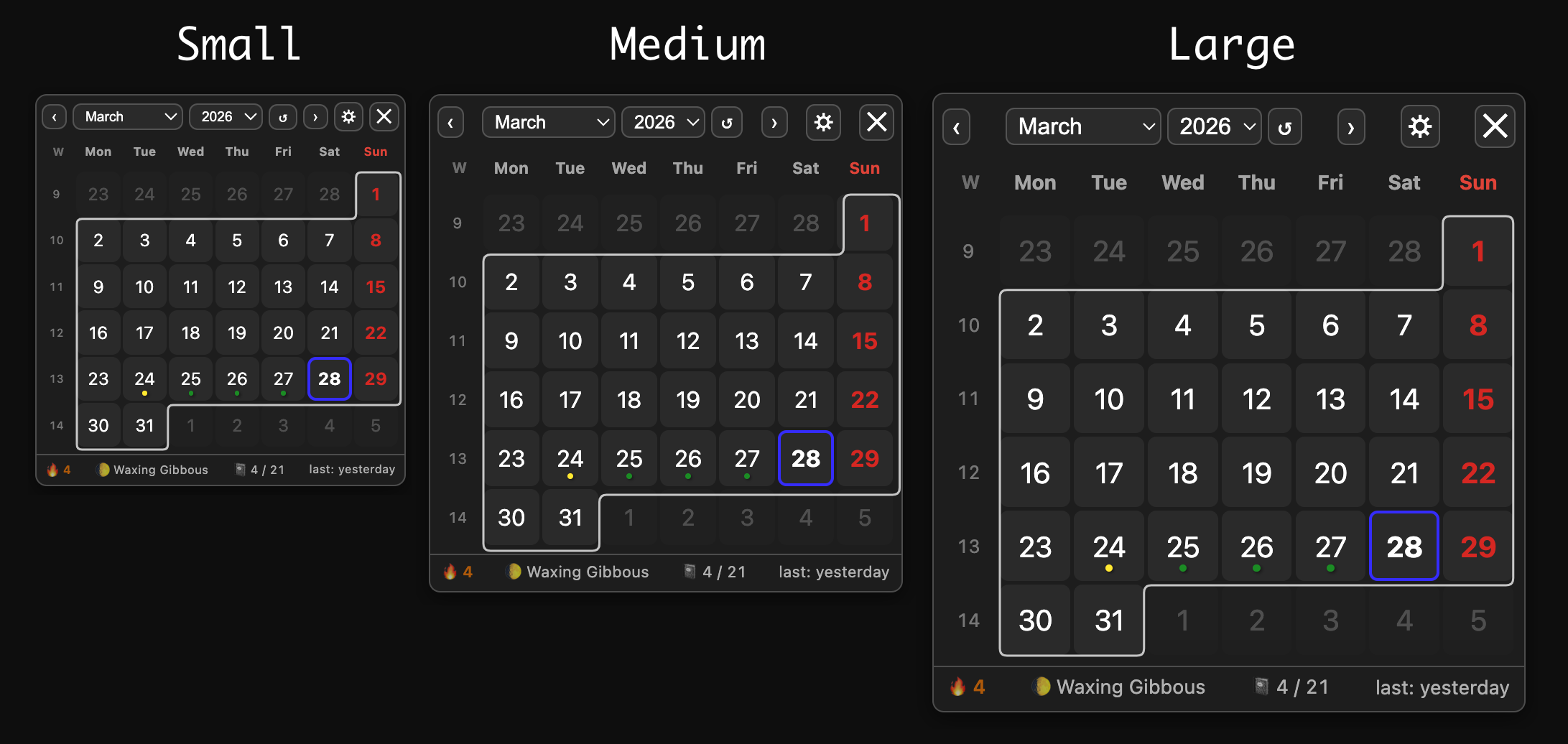
Three different Sizes
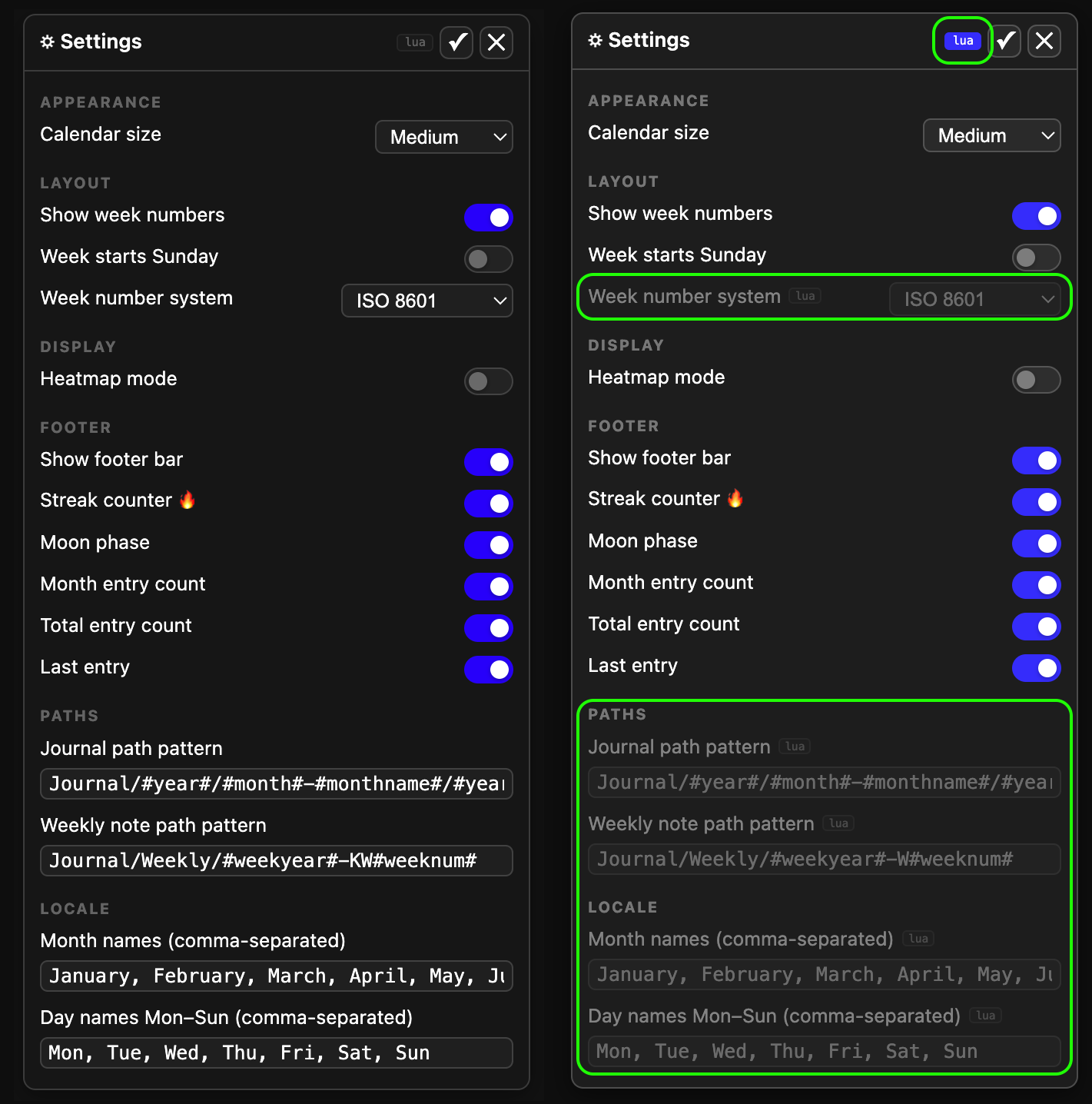
New user friendly Settings page:
You can now set up all the customisation parameters using the new GUI settings page, as an alternative to the space-lua block with the config.set
If you already set some parameters using the config.set space-lua function, these values will be locked & hidden in the settings page, to unlock, enable them, you must remove the space-lua block with config.set for FloatingJournalCalendar
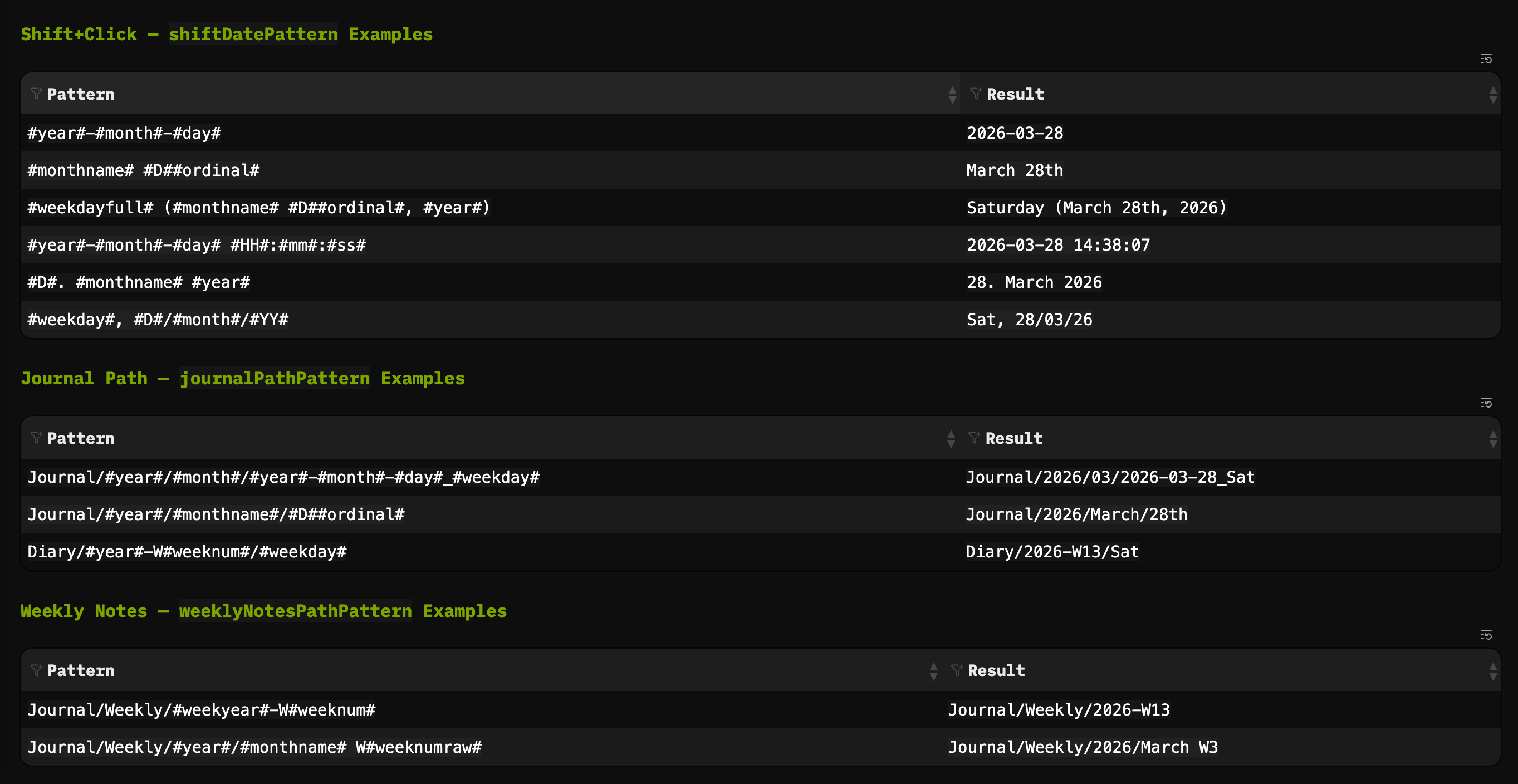
Shift+Click to add a plain text date similar to a date picker
Flexible Pattern Parameters:
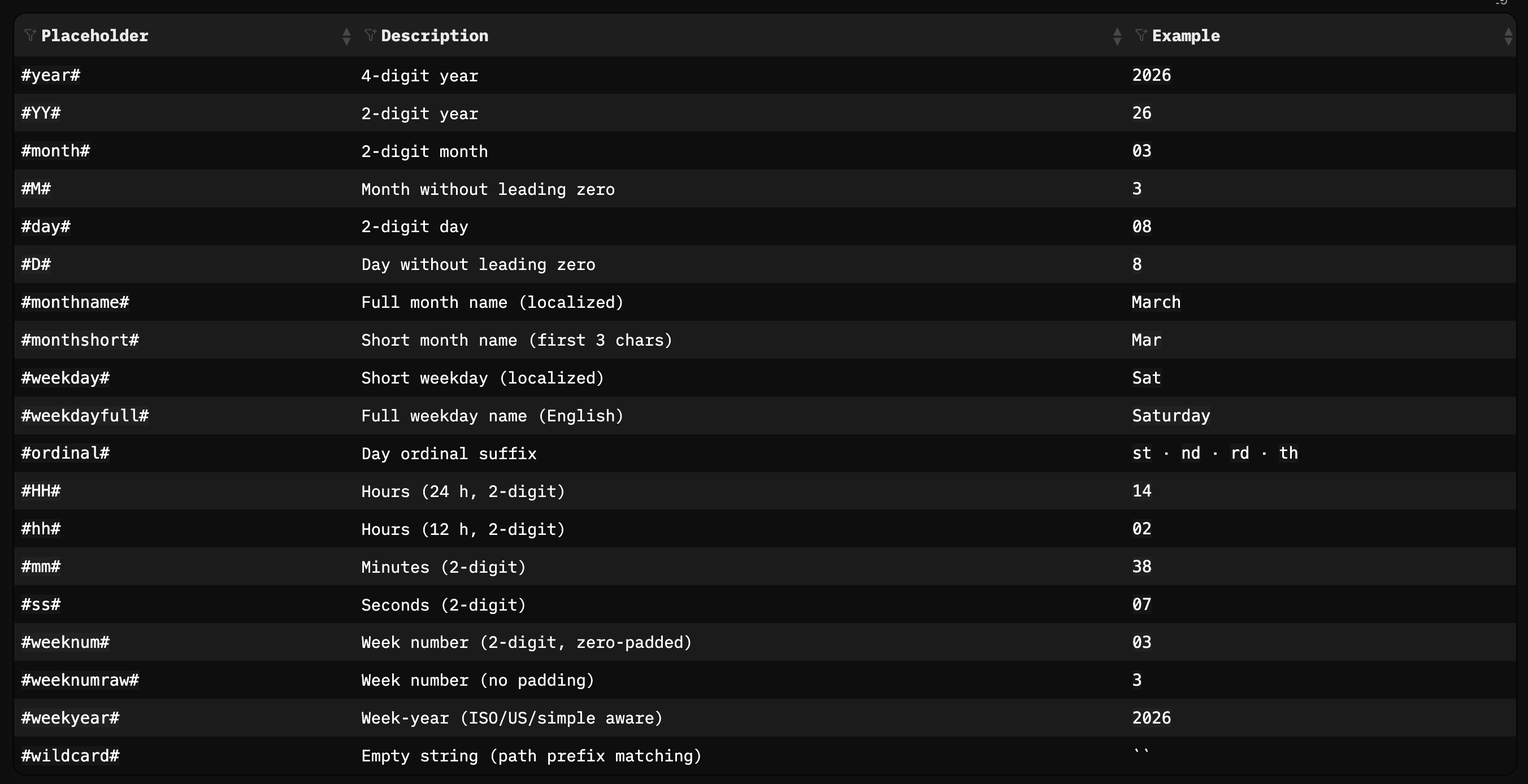
Pattern Examples:
Great functionality, I love the new look. What I would still love is a combination of the Shift & Ctrl click functionalities, aka - I'd like to be able to generate a link like this [[Journal/2026/03/2026-03-28|March 28, 2026]].
 Done
Done
Interaction Overview
| Modifier | Action | Result |
|---|---|---|
(none) |
Click | Navigate to journal page |
Drag |
Drag to editor | Insert [[WikiLink]] |
Cmd/Ctrl |
Click | Insert [[WikiLink]] (or [[WikiLink|Selection]] if text selected) |
Shift |
Click | Insert plain-text date from shiftDatePattern |
Cmd/Ctrl + Shift |
Click | Insert [[WikiLink|Formatted Date]] alias |
[UPDATE]
If you are bored of the default calendar colors and you don't want to fiddle with space-lua or space-config to just adjust some colors. this update is for you:
- Added the Colors section to the settings page. With the color picker you can easily change the element colors, and create vivid or personalized themes for your calendar without touching the code.
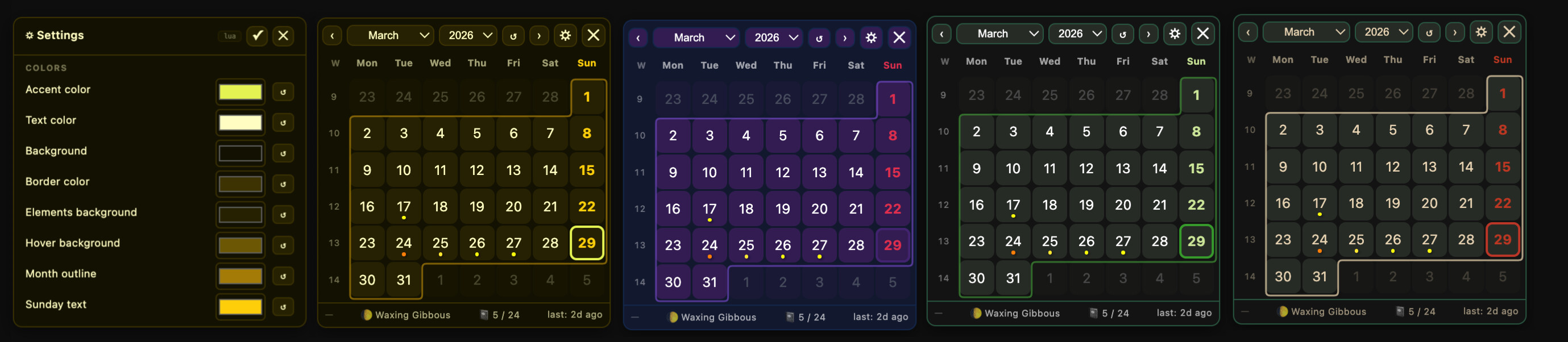
- Easy way to share and apply FJC themes:
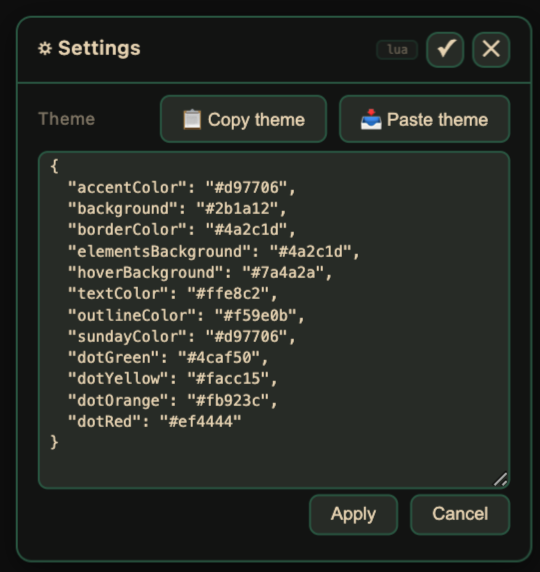
And here are some examples:
Rustic Harmony Theme
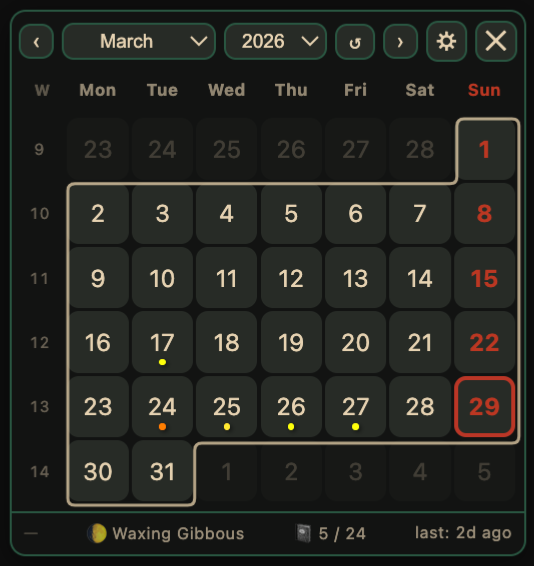
{
  "accentColor": "#c94b32",
  "background": "#171817",
  "borderColor": "#346852",
  "elementsBackground": "#333833",
  "hoverBackground": "#346852",
  "textColor": "#ebdabe",
  "outlineColor": "#eddab9",
  "sundayColor": "#c94c2c",
  "dotGreen": "#ffff00",
  "dotYellow": "oklch(0.95 0.18 95)",
  "dotOrange": "oklch(0.8 0.20 55)",
  "dotRed": "oklch(0.6 0.2 10)"
}
Velvet Vampire Theme
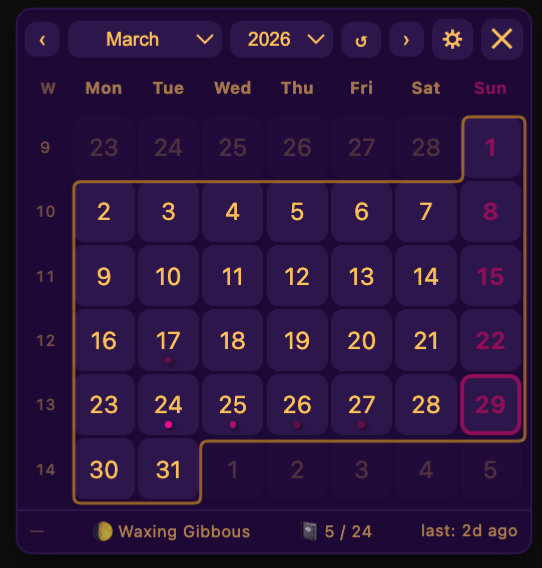
{
  "accentColor": "#a1236a",
  "background": "#290d45",
  "borderColor": "#3b225e",
  "elementsBackground": "#3b225e",
  "hoverBackground": "#5e3696",
  "textColor": "#ffcb6b",
  "outlineColor": "#c9922c",
  "sundayColor": "#a1236a",
  "dotGreen": "#7d1c55",
  "dotYellow": "#bb2a7f",
  "dotOrange": "#f532a4",
  "dotRed": "#ff00f7"
}
Neon Glacier Theme
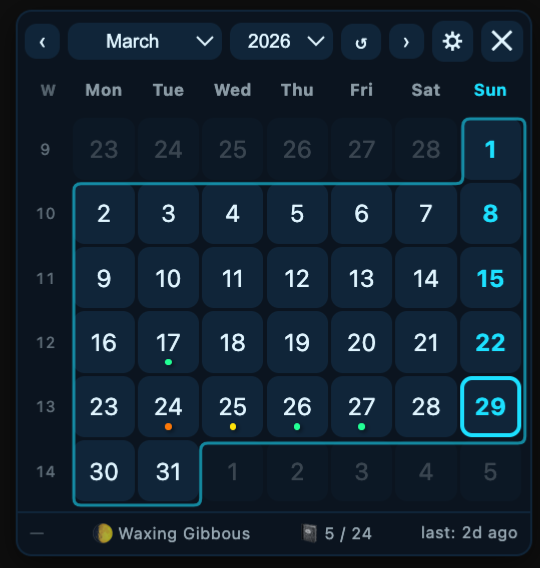
{
  "accentColor": "#00e5ff",
  "background": "#0b1a2a",
  "borderColor": "#12324a",
  "elementsBackground": "#12324a",
  "hoverBackground": "#1f5a7a",
  "textColor": "#e6f7ff",
  "outlineColor": "#00bcd4",
  "sundayColor": "#00e5ff",
  "dotGreen": "#00ffa6",
  "dotYellow": "#ffe600",
  "dotOrange": "#ff8c00",
  "dotRed": "#ff3b3b"
}
Overcaffeinated Autumn Theme
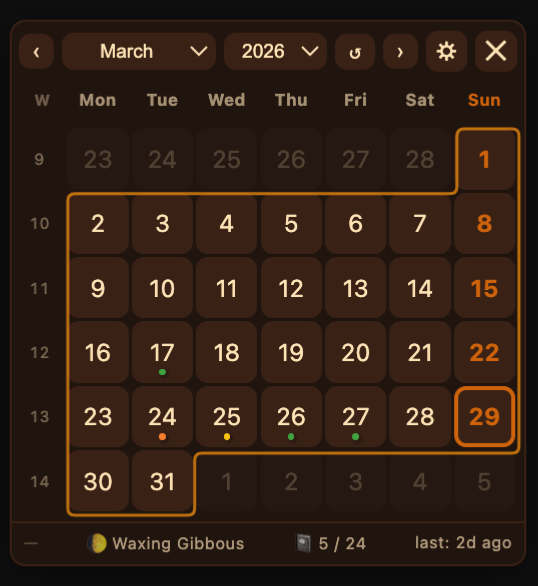
{
  "accentColor": "#d97706",
  "background": "#2b1a12",
  "borderColor": "#4a2c1d",
  "elementsBackground": "#4a2c1d",
  "hoverBackground": "#7a4a2a",
  "textColor": "#ffe8c2",
  "outlineColor": "#f59e0b",
  "sundayColor": "#d97706",
  "dotGreen": "#4caf50",
  "dotYellow": "#facc15",
  "dotOrange": "#fb923c",
  "dotRed": "#ef4444"
}
Cotton Candy Daydream Theme
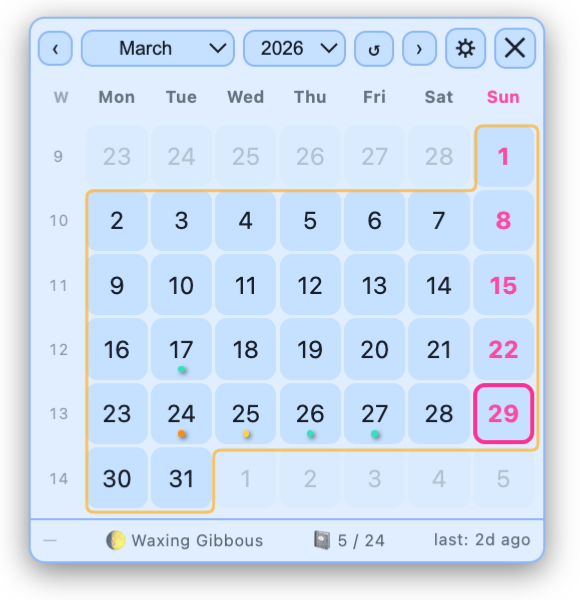
{
  "accentColor": "#ff4fa3",
  "background": "#e6f2ff",
  "borderColor": "#9ec5f8",
  "elementsBackground": "#cfe7ff",
  "hoverBackground": "#ffb8e0",
  "textColor": "#1f2a38",
  "outlineColor": "#ffbf3f",
  "sundayColor": "#ff66b2",
  "dotGreen": "#2ee6c9",
  "dotYellow": "#ffd84d",
  "dotOrange": "#ff9f1c",
  "dotRed": "#ff3d8f"
}